This article was co-authored by Yaffet Meshesha and by wikiHow staff writer, Jack Lloyd. Yaffet Meshesha is a Computer Specialist and the Founder of Techy, a full-service computer pickup, repair, and delivery service. With over eight years of experience, Yaffet specializes in computer repairs and technical support. Techy has been featured on TechCrunch and Time.
The wikiHow Tech Team also followed the article's instructions and verified that they work.
This article has been viewed 499,436 times.
Opera Mini is a mobile web browser that focuses on speed and protection.[1] While you can't download videos directly from YouTube's page in Opera Mini, you can use a free website to convert and download any videos which don't contain copyrighted material. Keep in mind that you cannot download or use Opera Mini on an iPhone or iPad, so you'll need an Android to do this.
Steps
Part 1
Part 1 of 2:Selecting a Video
-
1
-
2Tap the address bar. It's at the top of the screen. Tapping the address bar will highlight the address bar's text.
-
3Go to YouTube. Use your Android's on-screen keyboard to type in youtube.com, then tap Go. This will load YouTube's main website.
- On some Androids, you may tap Search or Enter instead of Go.
-
4
-
5Select your video. Tap the video you want to download. This will open the video.
-
6Tap the "Share" icon. It's a right-facing arrow below the bottom-right corner of the video player. A menu will appear.
-
7Long-press and release the video's address. It's at the top of the menu. As long as you hold the address for around a second, a pop-up menu will appear.
-
8Tap Copy link. It's in the menu. This copies the YouTube video's address to your Android's clipboard, meaning you'll be able to paste it into a different site in order to download the video.
-Step-1-Version-2.jpg)

-Step-2-Version-2.jpg)
-Step-3-Version-2.jpg)
-Step-4-Version-2.jpg)

-Step-5-Version-2.jpg)
-Step-6-Version-2.jpg)
-Step-7-Version-2.jpg)
-Step-8-Version-2.jpg)
Part 2
Part 2 of 2:Downloading the Video
-
1Go to the Convert2MP3 website. Tap the address bar, then type in convert2mp3.net and tap Go. This will open the Convert2MP3 website, which is the service you'll use to convert your YouTube link into a downloadable video.
- You can use any YouTube downloader for this—if you're not sure which one to use, just type "YouTube download site" into your Google search bar, then choose one of the first options that pops up. Typically, the highest-rated results on Google are the most trustworthy.[2]
-
2Tap the "Insert video link" text box. You'll find this near the top of the page.
- If the page displays in German, you can switch to English if necessary by tapping EN in the top-right corner of the page.
-
3Paste in your copied YouTube address. Long-press the "Insert video link" text box, then release the box and tap PASTE when it appears. You should see your YouTube link appear in the text box.
-
4Tap mp3. It's below the address box. A drop-down menu will appear.
-
5Tap mp4. This is in the drop-down menu. Doing so tells Convert2MP3 to convert your video's link into an MP4 video.
-
6Tap convert. It's below the "Quality" drop-down box.
-
7Tap Download. This option is in the middle of the screen.
- If you instead see an error that says the video can't be downloaded, your selected video contains copyrighted material and thus cannot be downloaded via the Opera Mini browser.
-
8Tap Download when prompted. It's at the bottom of the screen. Your video will begin downloading.
- If this is your first time downloading anything via Opera Mini, you'll tap ALLOW when prompted before the file will download.
- You can watch your video's download progress by swiping down from the top of the screen and looking for the "Opera Mini" notification.
-
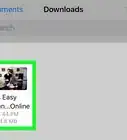
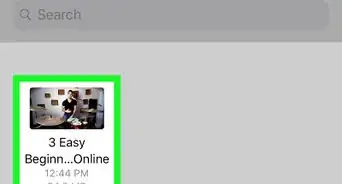
9Open your downloaded video. Once your video finishes downloading, you can watch it from within the Opera Mini web browser by doing the following:
- Tap the "O"-shaped Opera logo in the upper-right corner of the page.
- Tap Downloads in the drop-down menu.
- Tap your video's name in the resulting menu.
-Step-9-Version-2.jpg)
-Step-10-Version-2.jpg)
-Step-11-Version-2.jpg)
-Step-12-Version-2.jpg)
-Step-13-Version-2.jpg)
-Step-14-Version-2.jpg)
-Step-15-Version-2.jpg)
-Step-16-Version-2.jpg)
-Step-17-Version-2.jpg)
Community Q&A
Did you know you can get expert answers for this article?
Unlock expert answers by supporting wikiHow
-
QuestionWhat is the Opera Mini web browser?
 Yaffet MesheshaYaffet Meshesha is a Computer Specialist and the Founder of Techy, a full-service computer pickup, repair, and delivery service. With over eight years of experience, Yaffet specializes in computer repairs and technical support. Techy has been featured on TechCrunch and Time.
Computer SpecialistOpera Mini is a mobile web browser app that focuses on speed and protection. The browser uses features that you would typically have to get as extensions on other browsers, like ad blocking, as well as site compression to ensure you're getting the fastest speeds around.
Support wikiHow by unlocking this expert answer.
-
QuestionHow can I download JavaScript?
 Community AnswerYou don't need to download anything. JavaScript support is included with your browser.
Warnings
- There is currently no way to download copyrighted videos onto your Android (or iPhone, for that matter). If you want to download YouTube videos which contain copyrighted material, you'll need to use 4K Video Downloader on a computer.Thanks!



References
About This Article