X
This article was written by Darlene Antonelli, MA. Darlene Antonelli is a Technology Writer and Editor for wikiHow. Darlene has experience teaching college courses, writing technology-related articles, and working hands-on in the technology field. She earned an MA in Writing from Rowan University in 2012 and wrote her thesis on online communities and the personalities curated in such communities.
This article has been viewed 9,333 times.
This wikiHow teaches you how to download Snapchat videos.
Steps
Method 1
Method 1 of 2:On Android
Method 1
-
1Download AZ Screen Recorder - No Root from the Play Store . Since Snapchat does not allow video downloads, you will need to download a screen recording app to record the video as it plays.
- When downloading AZ Screen Recorder, make sure you select the app with a red and white camera icon. The developer is listed as "Hecorat ."
-
2Open AZ Screen Recorder - No Root. You'll find its icon in the app drawer. This launches the app and adds a set of buttons to the left side of the screen.[1]
-
3
-
4Tap START NOW to start recording. After a 3 second countdown, the app will start recording everything on the screen, including any Snapchat video you play.
-
5Open Snapchat. It's the yellow and white ghost icon in the app drawer.
-
6Open the Snapchat video you want to record. AZ Screen Recorder will continue recording the screen as the video plays.
-
7


Method 2
Method 2 of 2:On iPhone
Method 2
-
1
-
2Tap Control Center. This will open a page where you can change what buttons appear in your control center.
- The Control Center is the panel that appears when you drag your finger up from the bottom of the screen.
-
3Tap Customize Controls.
-
4
-
5Open Snapchat. It's the yellow and white ghost icon in the app drawer or on your homepage.
-
6Drag your finger from the bottom of the screen towards the top. This will open the Control Center.
-
7
-
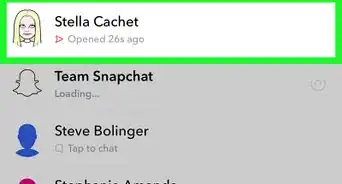
8Open the Snapchat story you want to record. Your iPhone or iPad's screen recorder will continue recording the screen as the video plays.
-
9Drag your finger up from the bottom of your screen. This will open the Control Center.
-
10Tap the red, blinking circle in a white square. This will stop the recording. You'll find the finished video in the Photos app.






References
About This Article

Darlene Antonelli, MA
Tech Specialist
This article was written by Darlene Antonelli, MA. Darlene Antonelli is a Technology Writer and Editor for wikiHow. Darlene has experience teaching college courses, writing technology-related articles, and working hands-on in the technology field. She earned an MA in Writing from Rowan University in 2012 and wrote her thesis on online communities and the personalities curated in such communities. This article has been viewed 9,333 times.
How helpful is this?
Co-authors: 4
Updated: March 29, 2019
Views: 9,333
Categories: Snapchat