This article was written by Darlene Antonelli, MA. Darlene Antonelli is a Technology Writer and Editor for wikiHow. Darlene has experience teaching college courses, writing technology-related articles, and working hands-on in the technology field. She earned an MA in Writing from Rowan University in 2012 and wrote her thesis on online communities and the personalities curated in such communities.
This article has been viewed 2,190 times.
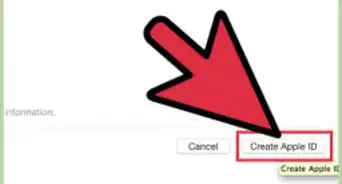
If you accidentally delete or lose your music on your iPhone, iPad, iPod, or Mac, you can easily download it again. This wikihow will show you how to download purchased music from iTunes if you're using an iPhone, iPad, iPod touch, Mac, or Windows. Since your iTunes purchases are linked to your Apple ID, you'll need to make sure you're logged into the account that originally purchased that music if you want to be able to download it again.
Steps
Method 1
Method 1 of 3:Using iPhone, iPad, or iPod Touch
-
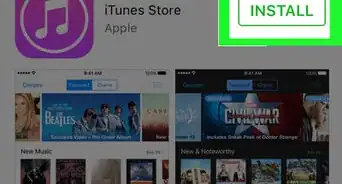
1Open the iTunes Store app. This is a purple icon with a star that you can find on one of your Home screens.
-
2Tap ••• . You'll see this at the bottom of your screen.
-
3
-
4Tap Music. You'll see this at the top of your screen and it will filter the results to music you've purchased from iTunes.
- If you have Family Sharing, you can tap a specific family member's name to see what music they have purchased from iTunes.
-
5Tap the music you want to download. This will pull up the details of that song or album.
-
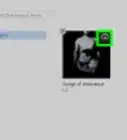
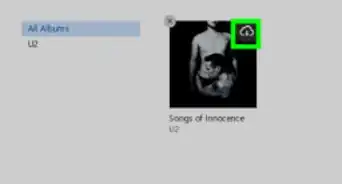
6Tap . You'll find this cloud icon next to the music details. After it's finished downloading, you'll be able to find your music in the Music app.[1]


Method 2
Method 2 of 3:Using a Mac
-
1Open the Music app. This app also looks like a music note. You'll find it in the Applications folder of Finder.
-
2Click Account. You'll see this in the menu bar along the top of your screen.
-
3Click Purchased. If you have Family Sharing enabled, you'll see "Family Purchases" instead.
- If you have Family Sharing set up, you can click a specific family member's name to see their purchased content.
-
4


Method 3
Method 3 of 3:Using Windows
-
1Open iTunes. This app icon looks like a music note that you'll find in your Start Menu.
-
2Click Account. You'll see this along the top of the program window.
-
3Click Purchased. If you have Family Sharing enabled, you'll see "Family Purchases" instead.
- If you have Family Sharing set up, you can click a specific family member's name to see their purchased content.
- If you're not signed into an account, this option will be greyed out. You'll need to click Sign In before you can see your purchases.
-
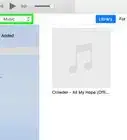
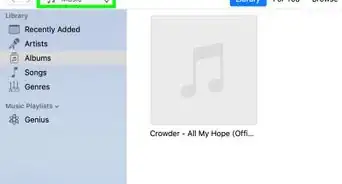
4Click Music. You'll see this in the menu in the upper left corner of the iTunes window.
-
5



References
About This Article

1. Open the iTunes Store app.
2. Tap the three-dot menu icon.
3. Tap Purchased.
4. Tap Music.
5. Tap the music you want to download.
6. Tap the download icon.