X
wikiHow is a “wiki,” similar to Wikipedia, which means that many of our articles are co-written by multiple authors. To create this article, 11 people, some anonymous, worked to edit and improve it over time.
This article has been viewed 259,321 times.
Learn more...
The Kindle Fire is a product similar to the iPad which was released by Amazon in 2011. The Kindle Fire not only allows you to download and read books, but you can also use it to listen to music, browse the web, or watch movies. There are a variety of ways to download books to a Kindle Fire. If you'd to know how to do it, just follow these steps.
Steps
Method 1
Method 1 of 3:Use the Amazon Store on Your Kindle Fire
Method 1
-
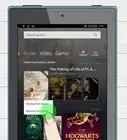
1Go to your home menu. This is the page that you will see by default when you turn your Kindle on. Just remember that before you can download books to your Kindle, you'll need to connect it to WiFi and to register it.[1]
-
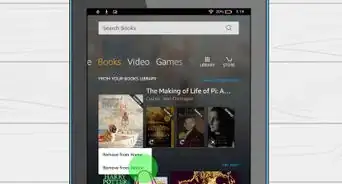
2Select "Books." This option is on the top of the screen, next to Newsstand and Music. This will take you to a "shelf" where all of the books you have received or downloaded will appear.
-
3Select "Store." You can find this option in the upper right hand corner. It will have a little arrow pointing to the right.
-
4Browse through the books. Check out all of the available books in the Kindle store. You can browse by category such as "bestsellers" or "non-fiction" by tapping "Browse books" or you can search for specific titles by typing the name of the book in the search field.
- You can also search "free books" for a list of available free books.
-
5Select the book. Tap on the book and you'll be taken to a screen that lists the price of the book, its rating, cover, and description. If the book is available as a rental, you'll see a "Rent now with 1-Click" button. If the book is available as a sample, you'll see a "Try a Sample" button. Trying a sample first is a free and easy way to see if you'd like to read the rest of the book.
-
6Tap "Buy." If you're an Amazon Prime member, then you'll be eligible to "Borrow for Free" if this is an available option. The "Buy" option will charge the default 1-click payment method to your Amazon.com account. Then your item will begin downloading to your Kindle Fire.
- If you aren't logged in, you may be asked to enter your username and password to proceed.
- Wait for your book to finish downloading. Once it's done, you'll see a "Read now" button.
-
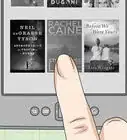
7Read your new book. Click on your "Books" tab again and select the book to start reading.


Method 2
Method 2 of 3:Use the Amazon Store on Your Computer
Method 2
-
1Go to www.amazon.com. This will take you to Amazon's home page. If you've used the site before on this computer, you should be logged in. If you're not, then go ahead and type in your username and password. Remember that for this process to work, you'll need to have registered your Kindle Fire.
-
2Browse through the books. Start browsing through the books either by typing in the names of books you're interested in in the search bar at the top of the screen, or by selecting "Kindle" at the top of the screen and then browsing by categories, like "Recommended for You," best-sellers, or various genres of books.
-
3Select the book. Once you've made your decision, click on the book you'd like to download, so you're at the page that lists various information about that book, such as its ratings, reviews, and price.
-
4Select your device. Go to the bar on the top right of the screen and select your device under "Deliver to."
-
5Click "Buy." You'll see an orange button on the top right of the screen above your device. Once you click this option, this item will be sent and delivered to your Kindle Fire.
-
6Turn on your Kindle Fire.
-
7Go to "Books." Find the new book in your library. You can click on it and wait for it to finish downloading.
-
8Enjoy your new book. Once you've found the book and finished downloading it, then you can begin reading it.


Method 3
Method 3 of 3:Use a Third Party Site on Your Computer
Method 3
-
1Open your web browser.
-
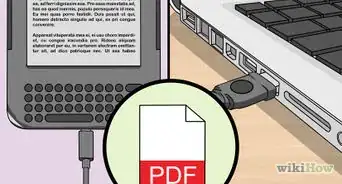
2Choose a book. Look for any free book that is available online. The 1-page version of the book is the easiest. You can also choose a book that you've written, or a book a friend emailed to you. Just make sure it's in PDF form.
-
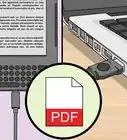
3Download the book in PDF form. If it's Word Document, convert it to a PDF after you download it.
-
4Save the file to your computer.
-
5Connect your Kindle Fire to your computer. Remember that you'll need to buy a USB cord separately to do this.
-
6Unlock your Kindle Fire screen.
-
7Open your "Kindle" drive. On a PC, you can find it under "Computer." On a Mac, it should be on your desktop.
-
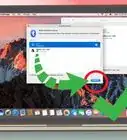
8Drag the file to your Kindle drive. Wait for it to finish transferring.
-
9Disconnect your Kindle. Once you've finished transferring the file, it'll be safe to disconnect your Kindle.
-
10Select "Docs" from your Kindle home page. You can find this option at the top of the screen.
-
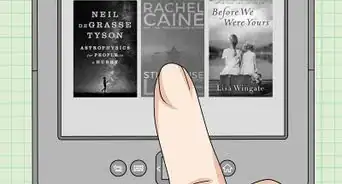
11Enjoy your book. Just tap on the book and start reading.


Community Q&A
-
QuestionHow do I transfer media from my old Kindle Fire to a newly registered one?
 Community AnswerPlug your Kindle into your PC. Then, go to go to "File Explorer" and find (in the sidebar) where it says the name of your Kindle. Next, you'll cut (Ctrl + X) OR copy (Ctrl + C) the book or books that you want to transfer. Plug your new kindle into the PC with a USB cord. Then paste (Ctrl + V) the files into the same file folder from before, but in your new Kindle.
 -
QuestionDo I have to register with Kindle Unlimited for any free books I want to claim from Amazon?Community AnswerNo, there are only certain books that are from Kindle Unlimited. You can still buy and get books for free.
-
QuestionWhat is a PDF converter?Community AnswerIt converts a PDF file into a different type of file, like a jpeg for example. If your computer cannot run PDFs, then you covert the file to something it can run.
-
QuestionCan I read a book offline once it has been downloaded?Community AnswerYes, you can.
-
QuestionWhat do I do if I purchased a book and downloaded it to my Kindle and can't access it to read it?
 Community AnswerTry re-downloading the file, or try updating the software on your Kindle. Contact Kindle support if these don't work.
 -
QuestionI downloaded books on to my old Kindle, which was lost. How can I get them to my new Kindle Fire?
 Community AnswerIf the books were downloaded from the Amazon store, logging in to the same Amazon account should work to get them back. If they were manually imported in PDF format, you have to repeat the process to get the books back.
 -
QuestionHow can I save a book from Google Drive to my Kindle Fire?Community AnswerUse Gmail to email the book from Google Drive to your Amazon email (which can be found in the Settings portion of the Kindle). The book should automatically show up as a "New item."
-
QuestionI downloaded a book, but it is not in English. How do I convert it to English?Community AnswerSadly, if the book is in PDF format, there is no way to convert the entire document to a different language. Try searching for translations (PDFs) online and re-downloading, or buying the English copy of the book from the Amazon store.
-
QuestionHow do I access books that have been downloaded to local storage on my Kindle Fire?
 Community AnswerGo to "Books" and open it. If you don't see what you're looking for, try checking the library (just under the search bar, bunch of little squares) and see if you see it there. Or, if you have a lot of books, you can use the search bar to find it that way.
 -
QuestionDo I need to be connected to WiFi in order to read the books I have downloaded on my Kindle Fire?Community AnswerNo, you don't. You only need to be connected to WiFi in order to download books.

References
About This Article
Article SummaryX
1. Go to the home screen.
2. Tap Books.
3. Tap Store.
4. Select a book.
5. Tap Buy.
6. Tap Read Now.
Did this summary help you?