X
This article was written by Darlene Antonelli, MA. Darlene Antonelli is a Technology Writer and Editor for wikiHow. Darlene has experience teaching college courses, writing technology-related articles, and working hands-on in the technology field. She earned an MA in Writing from Rowan University in 2012 and wrote her thesis on online communities and the personalities curated in such communities.
This article has been viewed 3,262 times.
Don't know how to add that funny little mark above that letter? This wikiHow teaches you how to add accents in Word on the mobile and desktop app.
Steps
Method 1
Method 1 of 4:Using the Word Desktop Application with the Insert Menu
Method 1
-
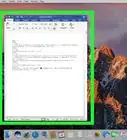
1Open Word. You'll find this application either in the Start menu (Windows) or in the Applications folder in Finder (Mac).
- You can either open a saved document or start a new one.
-
2Place your cursor where you want to insert the accent. If you have a letter typed out, you'll want to select it so the accent will be added to your letter. For example, if you have Pokemon written, you'll want to highlight the e.Advertisement
-
3Click Insert. You'll find this at the top of your screen or in the horizontal editing ribbon that's above the editing space.
-
4Click Symbol. You'll see this in the "Symbols" grouping next to "Equation" and a list of recently used symbols will drop-down.
-
5Click More Symbols (if you don't see it already). If you are able to select your accent from the list of recently used symbols, you can skip this step.
- If you can't find your accent immediately, make sure you look through all the available fonts since different font sets generally have different symbols.
-
6Select an accent from the list. After you've located the accent you want to use (remember to look through the different fonts), double-click one to insert it. Since you have the e selected in Pokemon, the accent should be added over the e so your word looks like Pokémon.Advertisement


Method 2
Method 2 of 4:Using ALT Codes on Windows
Method 2
-
1Open Word. You'll find this application in the Start menu and can either open a saved document (File > Open) or start a new one (File > New).
-
2Place your cursor where you want to insert the accent. If you have a letter typed out, you'll want to select it so the accent will be added to your letter. For example, if you have Pokemon written, you'll want to highlight the e.
-
3Press the corresponding ALT code. To make the accent over the e in Pokemon, press and hold the ALT key as you type these numbers on the numeric keypad: 0232. The numeric keypad is the one on the right side of the keyboard. When you release the ALT key, you'll see the accent appear over the e.
- You can find a list of more accents on Microsoft's support page.
- If you don't have a separate numeric number pad, you can use the method that uses the Insert menu.[1] You can also read How to Use a Symbol When You Have a Laptop.
Advertisement


Method 3
Method 3 of 4:Using Word for Mac
Method 3
-
1Open Word. You'll find this application in the Start menu and can either open a saved document (File > Open) or start a new one (File > New).
-
2Place your cursor where you want to insert the accent. Since the accented letter will be inserted, you'll want to highlight the letter you want to replace or have your cursor where you want the accented letter to appear. For example, if you intend to write Pokémon, you should either write Pokemon and highlight the e or type Pok.
-
3Press and hold a letter on your keyboard. If you're writing Pokémon, you'll need to press and hold the e key on the keyboard until a menu pops up on the screen.
-
4Click/press the correlating number key/use your arrow keys to select the accented character. You can either use your mouse to click the "e" that has the correct accent, you can press the number key on your keyboard that's displayed with the accent, or you can use your arrow key to highlight the accented character you want to insert and press the Space bar.[2]Advertisement


Method 4
Method 4 of 4:Using the Mobile App
Method 4
-
1Open Word. This app icon looks like a "W" next to two pieces of paper that you'll find on one of your Home screens, in the app drawer, or by searching.
- Gboard and the default iOS keyboard allow you to add accents to letters in almost any app, including Word.
-
2Press and hold a letter. Options for accents should pop out above the letter you're holding.
-
3Tap to select an accent. Once you make your selection, it will appear in the document.Advertisement















References
About This Article

Darlene Antonelli, MA
Tech Specialist
This article was written by Darlene Antonelli, MA. Darlene Antonelli is a Technology Writer and Editor for wikiHow. Darlene has experience teaching college courses, writing technology-related articles, and working hands-on in the technology field. She earned an MA in Writing from Rowan University in 2012 and wrote her thesis on online communities and the personalities curated in such communities. This article has been viewed 3,262 times.
How helpful is this?
Co-authors: 3
Updated: July 15, 2020
Views: 3,262
Categories: Microsoft Word
Article SummaryX
1. Open Word.
2. Press and hold a letter.
3. Tap to select an accent.
Did this summary help you?
Advertisement