X
wikiHow is a “wiki,” similar to Wikipedia, which means that many of our articles are co-written by multiple authors. To create this article, volunteer authors worked to edit and improve it over time.
This article has been viewed 11,787 times.
Learn more...
Sometimes you might want to disable your Windows Defender for reasons like using third party protection software. It's very easy to do that if you follow the following instructions.
Steps
-
1Open/run Windows Defender. Open up your Start menu, type "Windows Defender" in the Search box, and click the entry for "Windows Defender" that comes up.
-
2Click on "Tools" at the top of the window. Your tools are your "settings" area for the Windows Defender program.Advertisement
-
3Click on "Options". This shall give you more options to change the way Windows defender works.
-
4Open up the box for Administrative options. Choose Administrator from the options on the left of the window. This option should be the last option in this list.
-
5Uncheck "Use this program" to disable Windows Defender.
-
6Save your changes. Click on the "Save" button to save your changes.
-
7Close the confirmation message dialog box. Click the "Close" button.
-
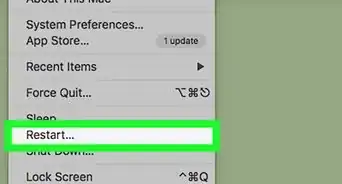
8Restart your computer to make sure your changes are applied.Advertisement


Community Q&A
-
QuestionHow do I get rid of files that Windows Defender has placed on my hard drive?
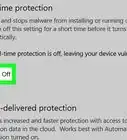
 Community AnswerOpen Settings. Click on Update & Security. Click on Windows Defender. Turn off the toggle switch for Real-time Protection.
Warnings
- Turning off Windows Defender exposes your computer to various threats and should never be done unless you run a third party malware protection software.Thanks!
Advertisement







About This Article
Advertisement