X
This article was co-authored by wikiHow Staff. Our trained team of editors and researchers validate articles for accuracy and comprehensiveness. wikiHow's Content Management Team carefully monitors the work from our editorial staff to ensure that each article is backed by trusted research and meets our high quality standards.
This article has been viewed 2,744 times.
Learn more...
This wikiHow teaches you how to turn off two-step verification on your Microsoft and Google accounts, using a desktop internet browser. If you already use two-factor authentication on your Apple ID, you can no longer turn it off because certain features in macOS require it as an extra level of security.[1]
Steps
Method 1
Method 1 of 2:Using a Microsoft Account
Method 1
-
1Open the Microsoft account page in your internet browser. Type account.microsoft.com/account into the address bar, and hit ↵ Enter or ⏎ Return on your keyboard.
-
2Click the Sign in button. It's in the upper-right corner of the page. This will open the sign-in form on a new page.
-
3Sign in to your Microsoft account. Signing in will open your account dashboard.
- Enter your email address, phone number or Skype ID.
- Click Next.
- Enter your account password.
- Click Sign in.
-
4Click the Update button in the "Security" box. This will open your security options on a new page.
-
5Click Explore more security options at the bottom. You can find this link at the bottom of the "Security basics" page.
-
6Verify your identity. Depending on your account information, you can choose to get a verification code sent to your email, or texted to your phone. This will open your "Additional security options" on a new page.
- Select a method if you're prompted.
- Enter your code in the area provided.
- Click Verify.
-
7Click the Turn off two-step verification link. You can find this option under the "Two-step verification" heading.
- You will have to confirm your action in a new pop-up.
-
8Click Yes in the confirmation pop-up. This will confirm your action, and disable two-step verification on your Microsoft account.


Method 2
Method 2 of 2:Using a Google Account
Method 2
-
1Open your Google account page in an internet browser. Type myaccount.google.com into the address bar, and hit ↵ Enter or ⏎ Return on your keyboard.
- If you're not automatically signed in, click the blue Sign in button on the top-right, and log in with your email and password.
-
2Click Signing in to Google under "Sign-in & security." This will open your password and sign-in settings on a new page.
-
3Click 2-Step Verifiation. You can find it in the "Password & sign-in method" box.
-
4Verify your account password. In order to change your security settings, you'll first have to verify it's you.
- Enter your password.
- Click Next.
-
5Complete the 2-step verification process. You can do this with Google prompt, or with a verification code via text message or phone call.
- If you have Google prompt, tap Yes on your prompt device.
- If you're using the verification code method, select whether you want to receive your code via text message or phone call, enter your code in the area provided, and click Next.
-
6Click the blue TURN OFF button. You can find it near the top of the page.
- You will have to confirm your action in a pop-up window.
-
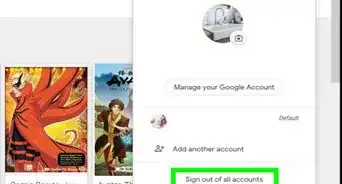
7Click TURN OFF in the confirmation pop-up. This will disable 2-step verification on your Google account.







References
- ↑ https://support.apple.com/en-us/HT204915
About This Article

wikiHow Staff
wikiHow Staff Writer
This article was co-authored by wikiHow Staff. Our trained team of editors and researchers validate articles for accuracy and comprehensiveness. wikiHow's Content Management Team carefully monitors the work from our editorial staff to ensure that each article is backed by trusted research and meets our high quality standards. This article has been viewed 2,744 times.
How helpful is this?
Co-authors: 1
Updated: March 29, 2019
Views: 2,744
Categories: Computers and Electronics