X
wikiHow is a “wiki,” similar to Wikipedia, which means that many of our articles are co-written by multiple authors. To create this article, volunteer authors worked to edit and improve it over time.
This article has been viewed 23,246 times.
Learn more...
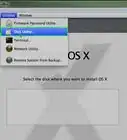
Chkdsk appears in the start up and you want to disable it. Just follow these few easy steps to do so:
Steps


Warnings
- Never remove your plug while your computer is shutting down because it would enable the chkdsk.Thanks!
- Never skip chkdsk.Thanks!