X
wikiHow is a “wiki,” similar to Wikipedia, which means that many of our articles are co-written by multiple authors. To create this article, volunteer authors worked to edit and improve it over time.
This article has been viewed 19,740 times.
Learn more...
Automatic app updates can be very annoying in Windows 10. Sometimes they will affect or use up all your internet data. This wikiHow article shows you how to disable automatic Windows Store app updates on your computer.
Steps
-
1
-
2Click on the account menu (⋯). You will see this option on the top-right corner of the app.
-
3Select Settings from there. It will be the second option.
-
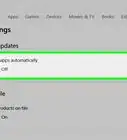
4Navigate to the App updates section and toggle off the blue switch next to the Updates app automatically. The blue switch will turn to grey after you do so. The colour of the switch will be different on your PC.
- If you see the switch is off, updates for Windows apps are already disabled, so you don't have to change anything.
-
5Finished. Now you can close the window and go back to your usual activities. Turn on the option again if you want to re-enable auto updates.




-Step-17.webp)