This article was written by Travis Boylls. Travis Boylls is a Technology Writer and Editor for wikiHow. Travis has experience writing technology-related articles, providing software customer service, and in graphic design. He specializes in Windows, macOS, Android, iOS, and Linux platforms. He studied graphic design at Pikes Peak Community College.
The wikiHow Tech Team also followed the article's instructions and verified that they work.
This article has been viewed 6,307 times.
This wikiHow teaches you how to delete a debit or credit card on Amazon for iPhone and iPad. You can easily delete credit and debit cards from you Amazon account using the Amazon app.
Steps
-
1Open the Amazon app. It's a white colored app with the Amazon logo above a blue shopping cart on it.
- Download Amazon from the App Store and sign in to your Amazon account if you haven't done so already.
-
2Tap ☰. It's located in the upper-left corner of the app. This opens a menu on the left-hand side of the screen.
-
3Tap Your Account. It's the fourth option in the menu.
-
4Tap Manage Payment Options. It's in the third section under the "Amazon Wallet" heading.
-
5Tap Delete for a credit card. It's below the expiration date on the right-hand side for each credit card listed on your Amazon account. This will open a review and confirmation page.
-
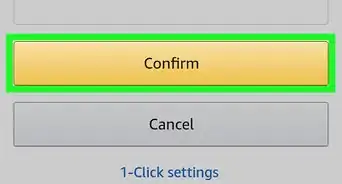
6Tap Confirm. It's the yellow button at the bottom of the page, just above the "Cancel" button. This will confirm and delete your debit or credit card.
-
7Tap Update. It's the yellow button at the bottom of the page, just above the "Cancel" button.This will update your account to a new credit or debit card.
-
8Tap OK. It's the yellow button at the bottom of the page. Your account will be updated to no longer include the credit card you deleted.



About This Article

1. Open Amazon.
2 Tap ☰.
3. Tap Your Account.
4. Tap Manage Payment Options.
5. Tap Delete under the card.
6. Tap Confirm.
7. Tap Update and OK.