This article was written by Jack Lloyd. Jack Lloyd is a Technology Writer and Editor for wikiHow. He has over two years of experience writing and editing technology-related articles. He is technology enthusiast and an English teacher.
The wikiHow Tech Team also followed the article's instructions and verified that they work.
This article has been viewed 1,188,219 times.
This wikiHow teaches you how to prevent a batch file from running immediately after being opened. There are a few different commands you can use to delay your batch file depending on your needs. Keep in mind that you should have a fairly firm grasp on how to write a batch file before attempting to delay one.
Steps
-
1
-
2Open Notepad. Type in notepad to search for Notepad, then click Notepad at the top of the Start window.Advertisement
-
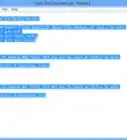
3Create your batch file. Often starting with the
@echo offcommand, enter your batch file's text as needed. -
4Determine how you want to delay your file. There are three main commands you can use to delay a batch file:[1]
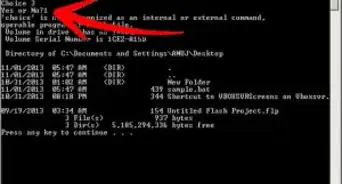
- PAUSE — Causes the batch file to pause until a standard key (e.g., the spacebar) is pressed.
- TIMEOUT — Prompts the batch file to wait for a specified number of seconds (or a key press) before proceeding.
- PING — Pauses the batch file until the file receives a return ping from a specified computer address. This usually results in only a small delay if you ping a working address.
-
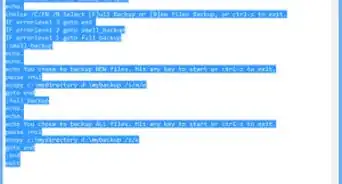
5Select a place to delay your file. You can delay a batch file at any point in the code (save for after the "Exit" command if you used one). Scroll down until you find the point at which you want to delay the file, then create a space between the code before the delay point and the code after.
-
6Type in your command. Depending on your preferred command, do one of the following:
- PAUSE — Type pause into the line. You don't need to add anything else here.
-
TIMEOUT — Type timeout time where "time" is replaced by the number of seconds to delay. For example, typing in timeout 30 will delay your batch file for 30 seconds.
- If you want to prevent people from skipping the delay with a keypress, type in timeout time /nobreak (where "time" is the number of seconds to wait).
- PING — Type in ping address where "address" is the IP address for a computer or website you want to PING.
-
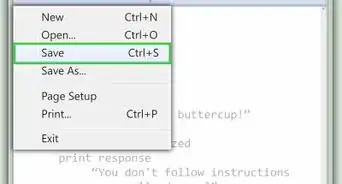
7Save your document as a batch file. If you haven't yet saved your document as a batch file, do the following:
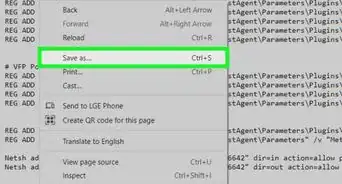
- Click File, then click Save As....
- Type in your file's name followed by .bat (e.g., "My Batch File" would become "My Batch File.bat").
- Click the "Save as type" drop-down box, then click All Files.
- Select a save location, then click Save.
Advertisement


Community Q&A
-
QuestionHow do I not get a message when I use timeout?
 Community AnswerAdd the >nul qualifier, like this: timeout /t 120 >nul. This causes a 2 minute delay with no output to the screen.
 -
QuestionWhat if the sleep command doesn't work?
 Community AnswerIf the sleep command doesn't work, use timeout instead.
 -
QuestionWhat if I want to wait less than one second? I can't just use a dot or a comma.
 Community AnswerYou can use the ping command. This command, if used with a non-existent IP address, will try to talk to a non-existent computer and give up after a specified number of milliseconds. Just multiply the number of seconds by 1000, and you're good to go.
 -
QuestionWhat can I do if the PING command skips?Community AnswerMake sure that you are using an invalid IP address. Also, remove '>nul' from the end and see what it outputs -- this might tell you why it skips.
-
QuestionHow do I check if a folder is created?
 David LangrCommunity AnswerIn this case, you can use "Parenthesis": @echo off IF EXIST "C:\Folder" ( echo Folder exists! ) ELSE ( Echo Folder does not exist! ) pause > nul
 -
QuestionHow do I get rid of a warning message for a time out?Community AnswerTo get rid of the warning message for a timeout, out >nul at the end of the line, and it will hide the warning.
-
QuestionHow do I delete the message for ping?
 Community AnswerYou should have: ping [a fake ip] Add >nul Now it should look like this: ping [a fake ip] >nul
 -
QuestionCan time out be used under an IF condition?Community AnswerYes, example: IF "String" == "String" (timeout 10 echo "String is equal to other string").
-
QuestionWhat do i do if the TIMEOUT command skips?Community AnswerYou might have pressed a key before or during the timeout part. You should use timeout /t /nobreak.
Warnings
- The formerly used "SLEEP" command does not work on Windows 10.Thanks!
- Batch files won't run on Mac computers.Thanks!



References
About This Article
1. To pause until a key is pressed, use "PAUSE."
2. To wait a specific amount of time, use "TIMEOUT."
3. To wait for a ping response, use "PING" followed by the IP.