X
This article was co-authored by Chris Batchelor, a trusted member of wikiHow's volunteer community. Chris Batchelor is a wikiHow community member and technology enthusiast. He has experience using a range of different platforms and software, and likes to keep up with updates and new features.
This article has been viewed 371,672 times.
Learn more...
Do you need to create a list in Microsoft Word and want to tell your boss what items have already been completed? Or maybe, you need to just cross something out for some other reason? For either reason, you'll need to know that this visualization effect exists in Microsoft Word. Use this article, to help you create this effect for the letters or words you selected.
Steps
-
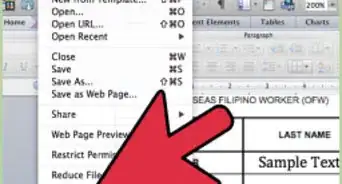
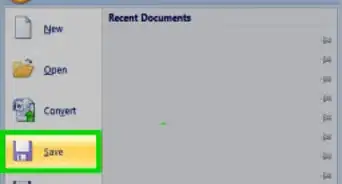
1Open your Microsoft Word program through whatever process you need.
-
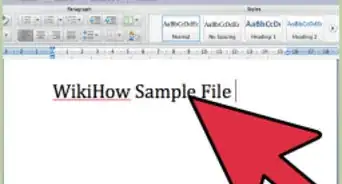
2Create your new documents text or open your document.
-
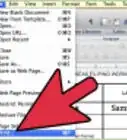
3Select the text you'd like to cross-out.
-
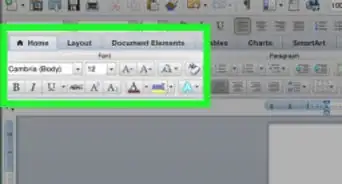
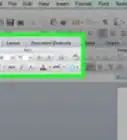
4Click the Font Dialog Box Launcher on the Home tab. You'll need to click the "double drop-down arrows (pointing downwards)" to open the remainder of the personalized menu list for this open to appear.
-
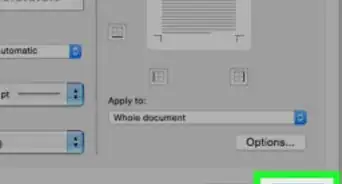
5Click the empty checkbox to the left of "Strike-through" on the Font tab.
- If you don't have a mouse or your mouse doesn't work, or you want to get courageous and your work depends on keystroke counts, you can also press the Alt and K keys together.
-
6Press ↵ Enter on your keyboard to save this setting. Your text should now be crossed-out/strike-through'ed.


Community Q&A
-
QuestionHow to draw a table in Word?
 Community AnswerYou can insert a table by clicking Insert at the top of the page, clicking Table, and choosing whatever kind of table you want. Check out How to Insert a Table in a Microsoft Word Document. It's basically the same process for all versions of Word.
Things You'll Need
- Microsoft Word program
- Word file