This article was co-authored by wikiHow Staff. Our trained team of editors and researchers validate articles for accuracy and comprehensiveness. wikiHow's Content Management Team carefully monitors the work from our editorial staff to ensure that each article is backed by trusted research and meets our high quality standards.
The wikiHow Tech Team also followed the article's instructions and verified that they work.
This article has been viewed 1,271,677 times.
Learn more...
This wikiHow teaches you how to create a new Apple ID, which you need to do things like downloading apps, making purchases from iTunes, and connecting to iCloud.
Steps
-
1Open Settings. It's a gray app that contains gears (⚙️) and is typically located on your home screen.
-
2Tap Sign in to your iPhone. It's at the top of the menu.[1]
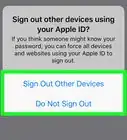
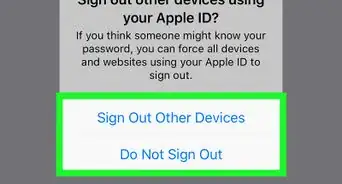
- If another Apple ID is currently signed in and you wish to create a different one, tap that user's Apple ID and then tap Sign Out at the bottom of the Apple ID menu. Follow the prompts to sign out.
- If you are running an older version of iOS, instead tap iCloud and then tap Create a new Apple ID.
Advertisement -
3Tap Don't have an Apple ID or forgot it?. It's below the password field.
-
4Tap Create Apple ID.
-
5Enter your birthday. Scroll the month, day, and year fields at the bottom of the screen to enter your birthday.
-
6Tap Next. It's in the upper-right corner of the screen.
-
7Enter your first and last name. Type them in their respective fields.
-
8Tap Next. It's in the upper-right corner of the screen.
-
9Select an email address to use.
- To use an existing email address, tap Use your current email address.
- To create a new iCloud email address, tap Get a free iCloud email address and follow the on-screen prompts.
-
10Enter your email address. This will be your Apple ID.
-
11Tap Next. It's in the upper-right corner of the screen.
-
12Enter and verify a password. Type it into the labeled fields.
- Your password must have at least 8 characters (including a number and an uppercase and lowercase letter) with no spaces. It also shouldn't have three consecutive characters (ggg), be your Apple ID, or a previous password you've used in the last year.
-
13Tap Next. It's in the upper-right corner of the screen.
-
14Select your country. If it's not auto-filled for you, tap on the field next to "Country" and tap the country associated with your phone number.
-
15Enter your phone number. If it's not auto-filled, tap the field next to "Number" and type in your phone number.
-
16Select a verification method. Tap either Text Message or Phone Call to indicate how you'd like Apple to verify your phone number.
-
17Tap Next. It's in the upper-right corner of the screen.
- A verification code will be sent to you by text message or via phone call.
-
18Enter the verification code. Enter the six-digit verification code you received and tap Next.
- If you received the code via text, your iPhone may recognize it and autofill it for you.
-
19Review the terms and conditions. If you prefer to have them sent to you by email, tap Send by Email at the top of the screen.
-
20Tap Agree. It's in the lower-right corner of the screen.
-
21Tap Agree. If you're not automatically signed into iCloud, enter the email you used to create your Apple ID and password into the labeled fields.
-
22Tap Sign In. It's in the upper-right corner of the screen.
- The screen will intermittently display the message "Signing into iCloud" as it accesses your data during the sign-in process.
-
23Enter your iPhone's passcode. This is the unlock code you established for your device when you set it up.
-
24Merge your data. If you'd like any calendars, reminders, contacts, notes, or other data already stored on your iPhone to be merged with your iCloud account, tap Merge; if not, tap Don't Merge.
- You've now created an Apple ID and signed into your iPhone with it.
Advertisement


Community Q&A
-
QuestionDo I have to pay money for starting an Apple ID?
 Community AnswerNo. Apple IDs are completely free.
 -
QuestionHow can I create a new Apple ID if I don't know any portions of my gift card codes?
 Community AnswerYou can't use a gift card code to sign up for an Apple ID at first. You can redeem gift cards after your account has been set up. If you have no billing cards (credit cards or debit cards), please refer to Create an Apple ID Without a Credit Card to get you going.
 -
QuestionCan the same Apple ID continue with a different iPhone?
 Community AnswerYes. Apple IDs can be transferred from one device to another, and even when you own two or more Apple devices at once, they can all use the same Apple ID interchangeably.
 -
QuestionIf my spouse has an Apple ID, can I still create one without messing up their account on the same phone?
 Community AnswerYes and no. Although inconvenient due to your spouse needing to set up their settings again, with a few extra taps into the settings, you can log them off the device and create your own account. Then, when your account is set up, you can have your spouse log back into his/her Apple ID. However, this will remove any personal settings your spouse had stored, such as Push Notifications and lots of others that may be near and dear to them.
 -
QuestionAre email addresses from the Gmail and Hotmail servers allowed when you try to create your Apple ID?Community AnswerIt doesn't really matter what email you add to create your Apple ID on your iPhone; as long as you have an email account, you should be good to go. Even those outside of the two major email companies are even able to be created.
-
QuestionWhat is a "rescue email" address?Community AnswerA rescue email is a secondary email in case the primary email doesn't work for some reason. However, it's rarely used, but is still required.
-
QuestionIf verified, will the email address not be used again?Community AnswerOnce you've verified your email address for your Apple ID, you can't recreate the account using that email address again. Instead, use another email address to set up another account or log into your Apple device using this ID.
-
QuestionWhat is the code for Visa?Community AnswerEach credit card has a different security code. Although it can be determined based on your card number on the front of the card, Visa doesn't have one single solitary number that's used on all Visa cards. It may be located on the back of your card near the signature bar but if not, contact your issuing bank for details.
-
QuestionCan I use my old email as an Apple ID?Community AnswerNo. Use your current email to create your Apple ID to ensure that Apple can contact you in an efficient manner. Keep your email as current as possible to ensure you have their receipts as well as they have your most current information should they need to contact you in the future.
-
QuestionHow can I enter both lower and uppercase letters for my password?Community AnswerUse your iPhone's keyboard for entering these letters. The shift key on the left side third row of the keyboard can be used to switch into uppercase mode.
Warnings
- If you don't have a credit card, Apple will not allow you to create an account. You must have a working credit card (debit cards with a credit-card symbol also work) account stored on your iPhone to be able to properly use it. Therefore, if you don't have one, don't try to even think about signing up just yet.Thanks!
Things You'll Need
- iPhone/iPod Touch/iPad
- Internet connection
- Valid email address
- Valid debit card, iTunes gift card, or gift certificate









References
About This Article

1. Open Settings.
2. Tap Sign in to your iPhone.
3. Tap Don't have an Apple ID or forgot it?
4. Tap Create Apple ID.
5. Follow the on-screen instructions.