X
wikiHow is a “wiki,” similar to Wikipedia, which means that many of our articles are co-written by multiple authors. To create this article, volunteer authors worked to edit and improve it over time.
Learn more...
While programmers get busy creating code, you can less busy while watching your Alexa take care of completing tasks by itself - with less knowledge of code than others would expect it to take to complete automating tasks by itself. With Routines, your Alexa can complete a list of actions by itself with little action taken by you based on the times or actions you'll complete to start and finish them - if necessary.
Steps
-
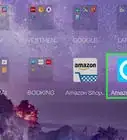
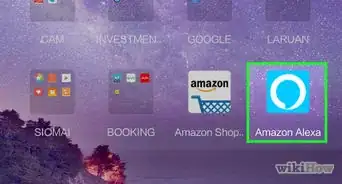
1Open the Amazon Alexa app. The Alexa app is sky-blue and has a white ring around it which decreases towards the bottom right-hand side. This icon exists for both operating systems - iPhone and Android. Tap it.
- Log in if you haven't done so already. Use your Amazon account credentials where the Alexa is set up at.
-
2Tap the More tab. This tab can be found in the bottom right corner - to the right of the "Devices" tab.Advertisement
-
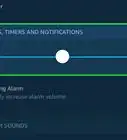
3Tap the "Routines" option. This option is found between "Alarms & Timers" and "Skills & Games."
-
4Make sure you haven't already created a routine for the action you want to perform. The list you see upon entry will list all the routines you've created and you'll want to check them out. If you need help knowing what will happen (for a preview), tap each routine's "play" button to the right of the Routine's label.
-
5Add a new routine. Tap the "+" button in the top right corner to the right of the all-caps "Routines" titlebar.
-
6Type a routine name. Tap the "Enter routine name's" + button. This is the top line of the routine information. Type the name, then tap the Done button on your keyboard. You have a max field of 50 characters here, so you'll want to keep this as short as possible.
- This helps you recognize the routine more quickly. It will be prefilled if you later have it complete the routine when you say something.
-
7Tell the routine when to open/play. Tap the "When this happens" option (or the + sign to the right of this label), then select an option. You will have to choose from "Voice", "Schedule", "Smart Home", "Location", "Alarms", "Echo Button", "Guard". Each one is set up so that you fill in additional details, such as providing a task name you'll have to announce, or when something else happens, you head to another location and something else happens on your Alexa for others to hear, or you press a button (and you'll tell it which buttons you'll press), or you'll activate it at a certain time (for Schedule), or when an alarm is dismissed (under Alarm) - each one has definite possibilities.
- If you want something to happen after an alarm is dismissed, tap "Alarm". However, there's a shortcut in the "Featured" tab that helps - called "Weather after alarm" (but the actions can be removed and other details put in there instead.)
-
8Add the action. Tap the "Add action" label at the bottom of the three-itemed list (or tap it's + button) and provide what you want your Alexa to do. The list is rather long, and you'll still need to provide additional details. You'll chose from: "Alexa Says" (output a phrase) or "Audible" (play an Audible audiobook, as Audible is part of Amazon[1] ), "Briefings", "Calendar", "Calling", "Date and Time", "Device Settings", "Drop In Notifications", "E-mail", "Entertain Me", "Fire TV", "Good News", "Guard", "IFTTT", "Messaging", "Music", "News", "Skills", "Smart Home", "Sounds", "Style", "Traffic", "Wait", "Weather" and "Custom".
- You can add as many items to the Actions list as you need, in the order they should be performed. If something needs to happen before something else has to start (or something needs to switch to something else), you can add these additional options in the best order they'll need to be performed in.
-
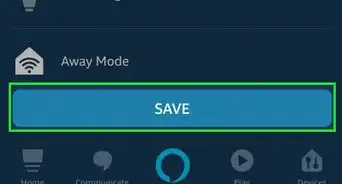
9Tap the "Save" button in the top right corner to save your work.Advertisement



References
About This Article
Advertisement