X
wikiHow is a “wiki,” similar to Wikipedia, which means that many of our articles are co-written by multiple authors. To create this article, volunteer authors worked to edit and improve it over time.
This article has been viewed 1,380 times.
Learn more...
As anyone who is a student or office worker knows, notebook and graph paper is often hard to come by quickly. However, if you are in a pinch and have an HP Smart Officejet printer can help you out. Connect to Wi-Fi and follow along below.
Steps
Method 1
Method 1 of 2:Setting up the Printer
Method 1
-
1Load paper into the printer. Each printer is different in how much it will take as well as how it is put in, so follow your exact Officejet printer's instructions. Most often though, these printers will accept more than a couple of sheets of paper at a time - especially in an Officejet (designed for office or home office everyday printing) printer!
-
2Turn on and let your printer connect to the Wi-Fi network. If this is your first time using it, you'll be prompted to set it up via Wi-Fi if it is available for your model. If this is not the first time, you may have to let it connect without setting it up first - just by turning on the printer with the power button.
-
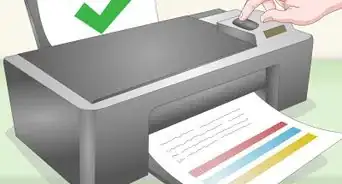
3Make sure that there is ink in the printer. HP OfficeJets will often tell you when it's out - especially the HP Smart ones. These papers will often need blue ink as well as the maroonish-red for the side-stripe. However, it'll take black if it feels it's prudent enough to use.
-
4Let all print jobs for this printer to finish. Documents queue to a list to be printed as soon as the printer is turned on and connected to the network, and you'll need to arrive at your HP Smart Officejet printers dashboard without the possibility of another document printing - to continue this project.


Method 2
Method 2 of 2:Creating the Paper
Method 2
-
1Find the "Apps" setting from your printers list of selections. Most often, HP has put the "Apps" setting on the top page. However, older models can find this a few pages below - and by tapping the left and right arrows to go forward and back a page, you can find this option.
- HP Officejet (Smart Wi-Fi) printers beginning in 2013 can find the "Apps" menu on the front page when the printer is ready.
-
2Let the "Connecting to HPeprintcenter.com" dialog go away. Your printer will access this website off the wifi network.
-
3Look for the "Quick Forms" link - and tap it. If it is not available on the top page, you either have to search through the other pages or add it back to your HP Officejet Printer's HPeprintCenter Dashboard in your account.
-
4Make your selection. Both notebook papers and graph papers will be not on the front page, but on an alternate page. Tap the left or right arrow until one of them is displayed.
- In the Quick Forms "app", you'll find additional choices such as "calendar", "checklist", "fax covers", "games" and "music paper" along with "notebook" and "graph paper".
-
5Clarify the type of paper you'd like. For graph paper, you'll have to select the smaller spaced 1/8th inch or 5mm. For notebook paper, you'll have "child rule", "narrow rule" (college rule), and "wide rule" to choose from.
-
6Select the number of pages you need to print using the up and down arrows on the screen. It's initially set to 0, but you can tap the up and down arrows on the screen to select your total page quantities needed.
- If you take no action from this screen, your page will timeout and your printer will return to your HPSmart's dashboard on your printer's screen.
-
7Realize it won't print the backs of pages unless you do the duplex printing yourself.
-
8Tap the "Print" button on the screen. You'll find this near the bottom right (or left, sometimes) corner of the printer's screen.
-
9Wait for the printer to queue the print job to your ePrintCenter's queue. You could often be left sitting for several minutes while it gets the print job ready - especially if it's less-commonly printed papers such as the "child rule" or "5mm" papers. You won't be told when it's ready - its print job just happens.
- If it doesn't print and it's been more than 30 minutes, try re-requesting it and waiting a little bit longer still. If it still doesn't print, check your Wi-Fi and Internet connection routers/modems then check your printer to ensure everything works, and the space near your printer is free of other items making it impossible to print due to sight-distance of the Wi-Fi box.
-
10Let the printer print the document to your printer - then print the other copies to the page as well.