X
wikiHow is a “wiki,” similar to Wikipedia, which means that many of our articles are co-written by multiple authors. To create this article, 9 people, some anonymous, worked to edit and improve it over time.
This article has been viewed 92,137 times.
Learn more...
Ever used the same AutoCAD command over and over again? Wish there was an easier way? There is! Follow these simple steps to create a button on the toolbar that does most of the typing for you!
Steps
-
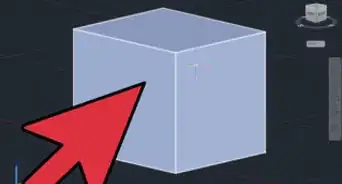
1For an example, this article will show you how to create a command that copies an object in place.
-
2Open AutoCAD.Advertisement
-
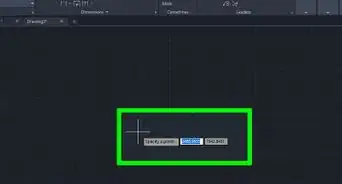
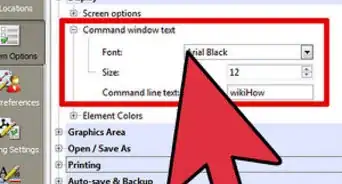
3Type "cui" in the command line and press enter. This will bring up the "Customize User Interface" dialog box.
-
4Right click in the command list and select "New Command".
-
5Rename your command to accurately describe what it will do.
-
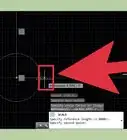
6In properties edit the macro of your new command.The "copy in place" command has this macro: "^C^C_copy 0,0 0,0""^C" is cancel or the equivalent of pressing the Esc key. Always start your command with two ^C in front to exit any commands you may be in."_copy " initiates the copy commandA space will do the same as pressing spacebar in the command line.The copy command then asks for a base point, and our macro inputs 0,0.To copy in place we then specify 0,0 for the point we copy to.
-
7Give your New Command an icon if you wish.
-
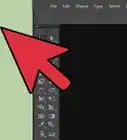
8Put it on existing toolbar or create your own.Advertisement


Warnings
- You may become so addicted to creating your own commands and toolbars, that you don't get any work done!Thanks!
Advertisement
Things You'll Need
- A computer
- AutoCAD 2006 or newer
- An idea for a useful command




About This Article
Advertisement