X
wikiHow is a “wiki,” similar to Wikipedia, which means that many of our articles are co-written by multiple authors. To create this article, volunteer authors worked to edit and improve it over time.
This article has been viewed 170,480 times.
Learn more...
Ever thought of adding an artistic touch to your Word documents, such as stories and articles? Well, Drop Cap is one such feature that enables you to display the first letter of the first paragraph in your document in a large font. This not only helps you embellish your document, but also makes it appear eye-catching. Read on to know how you can add a drop cap to a Word document.
Steps
-
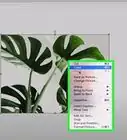
1Specify where you want to add a drop cap. Place the insertion point at the beginning of the paragraph where you want to add a drop cap.
-
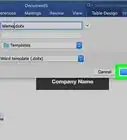
2Use the Drop Cap option. On the Format menu, click Drop Cap. The Drop Cap dialog box appears.
-
3Select the type of Drop Cap. Select the Dropped or In margin drop cap style.
-
4Select font. When you select a drop cap style, the Font drop-down box appears enabled. Select a desired font style for the drop cap.
-
5Select number of lines to drop. From the Lines to drop drop-down box, select the number of lines to be dropped.
-
6Finalize drop cap and apply it. Click OK to apply the drop cap with the desired font and style.


Community Q&A
-
QuestionCan I drop cap the first letter in every paragraph at once?
 Community AnswerNo, I don't believe so, as the cursor position tells Word where you want the drop cap to be. Also, doing that to every paragraph would likely get messy and excessive.
 -
QuestionWhat is a Word Drop Cap applied to?
 Community AnswerA Word Drop Cap is applied to word settings. It can help you organize the page.
 -
QuestionWhat if "Drop Cap" is greyed out?
 Community AnswerTry highlighting the letter you want to turn into a drop cap and then do it again.