This article was written by Nicole Levine, MFA. Nicole Levine is a Technology Writer and Editor for wikiHow. She has more than 20 years of experience creating technical documentation and leading support teams at major web hosting and software companies. Nicole also holds an MFA in Creative Writing from Portland State University and teaches composition, fiction-writing, and zine-making at various institutions.
This article has been viewed 7,805 times.
This wikiHow teaches you how to copy a file on your Google Drive to another location when you’re using a computer.
Steps
-
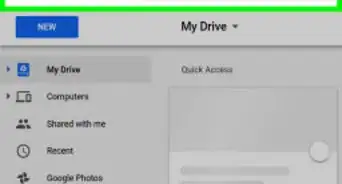
1Go to https://drive.google.com in a web browser. You can use any browser on your PC or Mac to access your Drive. If you’re not signed in to your account, click Go to Google Drive to sign in now.
-
2Right-click the file you want to copy. A menu will appear.
-
3Click Make a copy. It’s near the bottom of the menu. A copy of the file now exists in the current directory. The title of the copy begins with “Copy of.”
-
4Right-click the copy you just made. A menu will appear.
-
5Click Move to…. A list of folders on your drive will appear.
-
6Click the destination folder.
-
7Click MOVE. The copied file is now located in the selected folder.






About This Article

1. Sign in to https://drive.google.com.
2. Right-click the file.
3. Click Make a copy.
4. Right-click the copy.
5. Click Move to…
6. Click the destination folder.
7. Click MOVE.