This article was co-authored by Nicole Levine, MFA. Nicole Levine is a Technology Writer and Editor for wikiHow. She has more than 20 years of experience creating technical documentation and leading support teams at major web hosting and software companies. Nicole also holds an MFA in Creative Writing from Portland State University and teaches composition, fiction-writing, and zine-making at various institutions.
This wikiHow teaches you how to convert a VOB video file to the MP3 audio format. VOB files are created when you rip a DVD to your computer. These files contain video, audio, and subtitles, but converting them to MP3 will only save the audio. The most reliable way to convert would be to use VLC Media Player, which is available for both Windows and macOS. If you don't want to install any software, you can use an online conversion tool like CloudConvert—however, if you're working with a large video file, as many VOB files are, it may take a while to upload the file to the server.
Steps
Method 1
Method 1 of 3:Using VLC Media Player for Windows
-
1Open VLC Media Player. If you don't have VLC installed, you can download it for free at https://www.videolan.org.
-
2Click the Media menu. It's at the top-left corner of VLC Player.Advertisement
-
3Click Convert / Save on the menu.
-
4Click the + Add button. It's right next to the "File Selection" box.
-
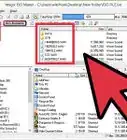
5Select your VOB file and click Open. This adds the file name to the "File Selection" box.
-
6Click Convert / Save. It's the button at the bottom of the window.
-
7Select Audio – MP3 from the "Profile" menu.
-
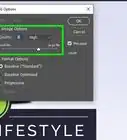
8Choose a higher bitrate (optional). The default MP3 conversion bitrate is 128 kb/s, which is pretty low quality. Since you're working with a DVD file, you'll probably want to choose a higher bitrate for your MP3—256 kb/s or 320 kb/s are both common bitrates for MP3s.[1] Here's how:
- Click the wrench icon next to the profile.
- Click the Audio codec tab.
- Enter 320 as the bitrate if you want quality on par with Spotify Premium. Use 256 if you want a smaller file with slightly less detail.
- Click Save.
-
9Create a destination MP3 file. Here's how:
- Click the Browse button in the "Destination" section.
- Choose a folder to save the MP3 to.
- Enter a name for the new MP3 file that ends with .mp3. For example, MovieAudio.mp3.
- Click Save.
-
10Click Start. This starts the conversion to MP3. When the file is converted, you will find the MP3 file in the location you selected in the previous step. You can now listen to that file in any audio player that supports MP3s.Advertisement


Method 2
Method 2 of 3:Using VLC Media Player for macOS
-
1Open VLC Media Player on your Mac. If you haven't already installed VLC Media Player, you can download it for free from https://www.videolan.org/index.html.
-
2
-
3Drag the VOB file to the "Drop media here" box. If you'd prefer, you can click Open media and choose the file from its directory.
-
4Select the Audio – MP3 profile. This tells VLC to convert the video file to the MP3 format.
- If you want to customize any details about the MP3, including the bitrate, click Customize to do so now. Enter 320 as the bitrate if you want quality on par with Spotify Premium. Use 256 if you want a smaller file with slightly less detail.
-
5Click Save as File to create a file. It's under the "Choose Destination" header.
-
6Create a new file. Here's how:
- Navigate to the folder you want to save the MP3 to.
- Enter a name for the new MP3 file that ends with .mp3. For example, MovieAudio.mp3.
- Click Save.
-
7Click the Go! button. This converts the video file to the MP3 audio format. The finished file will be in the folder you selected in the previous step. You can now play this file in any audio player, including VLC.Advertisement


Method 3
Method 3 of 3:Using CloudConvert
-
1Go to https://cloudconvert.com/vob-converter in a web browser. This is one of many web-based conversion tools you can use to convert your VOB file to MP3. They all work pretty much the same.
- To find more options, search the web for "Vob to MP3 converter."
-
2Click the red Select File button. This opens your computer's file browser.
-
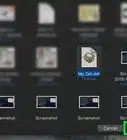
3Select your VOB file and click Open. This selects the file.
-
4Click the down-arrow next to "Convert to." A list of file types will appear.
-
5Click Audio. This filters the list to show just audio file types.
-
6Select MP3 from the list. If you want, you can also customize aspects of the finished file, such as its bitrate. To do this, click the wrench icon, enter your preferences, and then click Okay.
- Enter 320 as the bitrate if you want quality on par with Spotify Premium. Use 256 if you want a smaller file with slightly less detail.
-
7Click the red Convert button. This uploads the file to the server and begins the conversion. When the conversion is complete, you'll be prompted to download the MP3.
-
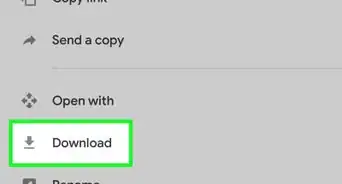
8Click Download to download the file to your computer. If the file doesn't download automatically, click Save or Download to start it. You can now play this file in any audio player app, such as Windows Media Player, iTunes, or VLC Media Player.Advertisement


References
About This Article

1. Go to https://cloudconvert.com/vob-converter.
2. Click Select File.
3. Select your VOB file and click Open.
4. Select MP3 as the "Convert to" type.
5. Click Convert.
6. Click Download.