This article was written by Nicole Levine, MFA. Nicole Levine is a Technology Writer and Editor for wikiHow. She has more than 20 years of experience creating technical documentation and leading support teams at major web hosting and software companies. Nicole also holds an MFA in Creative Writing from Portland State University and teaches composition, fiction-writing, and zine-making at various institutions.
The wikiHow Tech Team also followed the article's instructions and verified that they work.
This article has been viewed 13,957 times.
This wikiHow teaches you how to convert an .XCF file, the default file type for the GIMP image editor, to the JPEG (.JPG) format.
Steps
Method 1
Method 1 of 2:Using GIMP
-
1Open the .XCF file in GIMP. You’ll usually find GIMP in the Applications folder on a Mac, or in the Start menu on a PC (in the All Apps area).
- Double-clicking the file's name in a folder should automatically open it in GIMP, but you can also open it by clicking the File menu, selecting Open, and then double-clicking the file.
-
2Click the File menu. It’s at the top-left corner of the screen on a Mac, and the top-left corner of the app in Windows.
-
3Click Export As.
-
4Click the drop-down menu. It’s at the bottom of the ″Export Image″ window.
-
5Select JPEG image (*.jpg, *.jpeg, *.jpe).
-
6Change the end of the file name from ″.xcf″ to ″.jpg.″ The file name is in the ″Name″ box at the top of the window.
-
7Click Export. It’s at the bottom of the window.
-
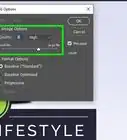
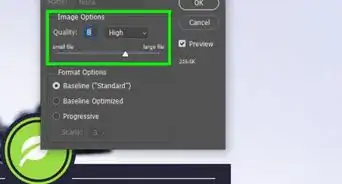
8Adjust your image quality (optional). The ″Quality″ slider is set to 90 by default, and that should be high enough quality for most purposes.
- If you’re worried about the file being too large, decrease the quality.
- To see a preview, check the ″Show preview in image window″ box.
-
9Click Export. A .JPG version of the .XCF file will now save to the current working folder.


Method 2
Method 2 of 2:Using an Online File Converter
-
1Find a free online XCF to JPG converter. There are many options, including Online Convert, Cloud Convert, and Convertio.
-
2Click Browse or Select Files. The name of this button varies by website. This will open your computer’s file browser.
-
3Open the folder that contains the .XCF file.
-
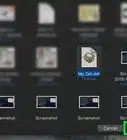
4Select the .XCF file and click Open.
-
5Adjust the quality settings (optional). Many online converters give you the option to select a resolution quality, set the DPI, and adjust the size.
-
6Click Convert file. This may be called Convert or Create on some sites. This process uploads the .XCF and saves its contents in the .JPG format.
-
7Follow the on-screen instructions to download the .JPG. The file may automatically download, but you’ll usually have to select a saving location and click Save.




About This Article

1. Open the file in GIMP.
2. Click File.
3. Click Export As.
4. Select JPEG image.
5. Click 'Export.