This article was co-authored by Darlene Antonelli, MA. Darlene Antonelli is a Technology Writer and Editor for wikiHow. Darlene has experience teaching college courses, writing technology-related articles, and working hands-on in the technology field. She earned an MA in Writing from Rowan University in 2012 and wrote her thesis on online communities and the personalities curated in such communities.
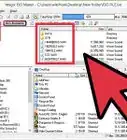
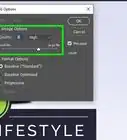
TGA files are raster graphics created by Truevision INC to capture the correct graphics settings in 3D images. This wikiHow will teach you how to convert TGA files to JPG format to make them smaller, easier to share, and more user-friendly. You can use a web browser on your desktop or mobile phone and tablet to do this with an online conversion tool like Zamzar. If you pay for Adobe PhotoshopPro, you may be able to open the TGA file and save it as a JPG file; however, there are no current standalone programs with plugins that will accomplish this reliably.
Steps
-
1Go to https://www.zamzar.com/convert/tga-to-jpg/ in a web browser. You can use any mobile or desktop web browser to convert TGA files to JPG.
- Zamzar is a free online converter that you don't need to sign up for an account to use. If you want upgraded perks, you can sign up for a free account or pay for even better upgrades.
-
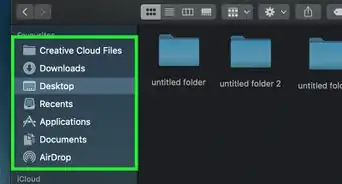
2Click or tap Add Files. Your file manager will open for you to select your TGA file. You can select multiple files, but you're limited to 50mb per session.Advertisement
-
3Navigate to your TGA file and double-click it. You'll see the name of your file replace "Step 1" as the progress bar fills.
-
4Select "jpg" from the drop-down list in Step 2. If this is already selected, move on to the next step.
-
5Click or tap Convert Now. You'll see your conversion progress in the bar below "Step 3."
-
6Click or tap Download. It's a dark blue button to the right of your converted file's name.
-
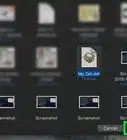
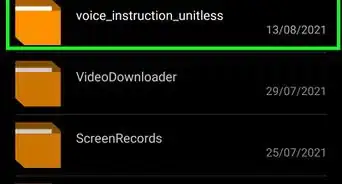
7Name your file and click Save. Your file manager will appear and you can change the file name and save location before continuing.Advertisement




About This Article

1. Go to https://www.zamzar.com/convert/tga-to-jpg/ in a web browser.
2. Click or tap Add Files.
3. Navigate to your TGA file and double-click it.
4. Select "jpg" from the drop-down list in Step 2.
5. Click or tap Convert Now.
6. Click or tap Download.
7. Name your file, then click Save.