This article was written by Travis Boylls. Travis Boylls is a Technology Writer and Editor for wikiHow. Travis has experience writing technology-related articles, providing software customer service, and in graphic design. He specializes in Windows, macOS, Android, iOS, and Linux platforms. He studied graphic design at Pikes Peak Community College.
The wikiHow Tech Team also followed the article's instructions and verified that they work.
This article has been viewed 10,665 times.
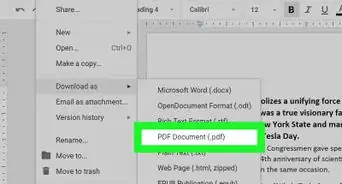
This wikiHow teaches you how to convert a Pages document to a PDF. Pages is a word processing app for Mac. It allows you to export Pages documents to PDF.
Need help creating, merging, or converting PDF files? Try wikiHow's PDF Toolkit, a free and easy-to-use custom tool to help you be more productive with your documents.
Steps
-
1Open Pages. It's the app that has an image of a piece of paper and an orange pen.
- Download Pages from the App Store, if you don't already have it.
-
2Select a Pages document. A file browser window will open when you launch pages. Click a pages document to select it.
- By default, the file browser window will open your iCloud drive. Use the pulldown menu at the top to browse folders on your Mac.
-
3Click Open. It's in the lower-right corner of the file browser window.
-
4Click File. It's in the upper-left corner of the menu bar at the top of the screen.
-
5Select Export To. Place the mouse cursor over "Export To" in the File menu to display a pop-out menu.
-
6Click PDF. It's under "Export To" under the File menu.
-
7Select image quality. Use the pulldown menu to select Good, Better, or Best.
- If you want to require a password to open the PDF, click the checkbox next to "Require password to open. Then then type a password and verify it in the second bar.
-
8Click Next. It's in the lower-right corner of the pop-out menu.
-
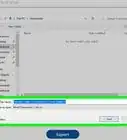
9Type a file name. The bar labeled "Save As:" at the top of the popup is where you type the file name.
- Use the pulldown menu at the bottom of the popup to select a folder destination for the PDF to save to.
-
10Click Export. It's in the lower-right corner of the popup. This will export the Pages document as a PDF.




About This Article

1. Open a Pages document.
2. Click File.
3. Select Export To.
4. Click PDF.
5. Click Next.
6. Type a filename.
7. Click Export.