This article was written by Jack Lloyd. Jack Lloyd is a Technology Writer and Editor for wikiHow. He has over two years of experience writing and editing technology-related articles. He is technology enthusiast and an English teacher.
The wikiHow Tech Team also followed the article's instructions and verified that they work.
This article has been viewed 7,875 times.
This wikiHow teaches you how to turn a PDF file into a PowerPoint presentation file. There are a couple of different free online sites which you can use to convert PDFs into PowerPoint presentations. Keep in mind that scanned PDFs, such as documents which you scanned into a computer, cannot be turned into editable PowerPoint presentations.
Need help creating, merging, or converting PDF files? Try wikiHow's PDF Toolkit, a free and easy-to-use custom tool to help you be more productive with your documents.
Steps
Method 1
Method 1 of 2:Using SmallPDF
-
1Open the SmallPDF PDF-to-PowerPoint converter site. Go to https://smallpdf.com/pdf-to-ppt in your computer's web browser.
- SmallPDF allows for two conversions per hour. If you've already used SmallPDF twice in the last hour, try using iLovePDF.
-
2Click Choose files. It's a link in the middle of the page. Doing so will open a window in which you can search for files on your computer.Advertisement
-
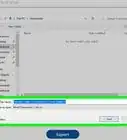
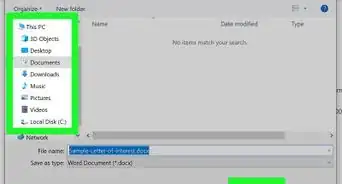
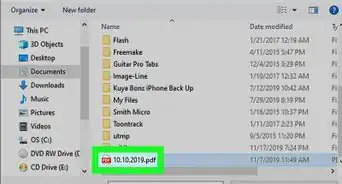
3Select a PDF. Go to the folder in which you saved the PDF that you want to convert, then click it to select it.
-
4Click Open. It's in the bottom-right corner of the window. Doing so will upload the PDF file to SmallPDF, where it will begin converting into a PowerPoint file.
-
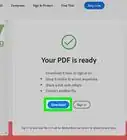
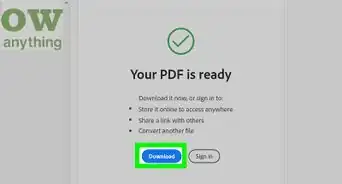
5Click Download File. This button is on the left side of the web page. Doing so will prompt the converted PowerPoint file to download onto your computer.
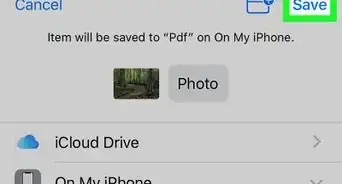
- Depending on your browser's settings, you may first have to select a save location and click Save or OK.
Advertisement


Method 2
Method 2 of 2:Using iLovePDF
-
1Open the iLovePDF PDF-to-PowerPoint converter site. Go to https://www.ilovepdf.com/pdf_to_powerpoint in your computer's web browser.
-
2Click Select PDF file. It's a button at the top of the page. Doing so will open a window in which you can search for files on your computer.
-
3Select a PDF. Go to the folder in which you saved the PDF that you want to convert, then click it to select it.
-
4Click Open. It's in the bottom-right corner of the window. Doing so will upload the PDF to iLovePDF.
-
5Click CONVERT TO POWERPOINT. You'll find this option near the bottom of the page.
-
6Wait for the PowerPoint file to download. After a few seconds, the PowerPoint file should begin downloading onto your computer.
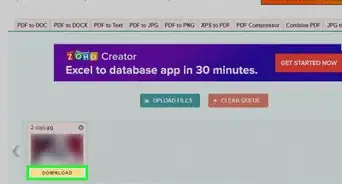
- You can also click Download POWERPOINT near the top of the page if the file doesn't download automatically after a minute or so.
Advertisement


Warnings
- If you convert a group of images into a PDF, you won't be able to turn the PDF into a PowerPoint presentation as the conversion process technically creates a "scanned" PDF.Thanks!

About This Article
1. Go to https://Smallpdf.com/pdf-to-ppt.
2. Click Chose file.
3. Select a PDF.
4. Click Open.
5. Click Download File.