X
This article was written by Jack Lloyd. Jack Lloyd is a Technology Writer and Editor for wikiHow. He has over two years of experience writing and editing technology-related articles. He is technology enthusiast and an English teacher.
The wikiHow Tech Team also followed the article's instructions and verified that they work.
This article has been viewed 41,704 times.
This wikiHow teaches you how to enable and use Voice Operation on your PlayStation 4 console.
Steps
Part 1
Part 1 of 2:Enabling Voice Commands
Part 1
-
1Connect your microphone to your PlayStation 4 controller. To do so, simply insert the headphone's plug into the controller's headphone slot, which is located on the back of the controller between the two handles.
- The PS4 comes with a rudimentary headset, but you can use any PS4-compatible headset that plugs into your controller or connects via Bluetooth.[1]
- If you have a PlayStation 4 camera set up, you can also use its microphone.
-
2Press your controller's PS button. As long as your controller is attached to your PlayStation 4, doing this will turn on both your controller and your console.
- You can also press the PS4's power button, which is on the left side of the front of the console, to turn it on.
Advertisement -
3Scroll up from the home page. Doing so will prompt the menu bar to appear.
-
4Scroll right to Settings and press X. The Settings icon resembles a bag.
-
5Scroll down to System and press X. You'll find this option near the bottom of the page.
-
6Select Voice Operation Settings and press X. It's near the top of the page.
-
7Select Operate PS4 with Voice and press X. This will place a checkmark in the box on the right side of the page, signifying that Voice Operation is now active.
- If there's a checkmark in the box, Voice Operation is already enabled.
Advertisement


Part 2
Part 2 of 2:Using Voice Commands
Part 2
-
1Say "PlayStation" into the microphone. Doing so will bring up the PlayStation 4's Voice Operation bar at the bottom of the TV's screen.[2]
- If at any point the voice bar disappears, simply say "PlayStation" again to bring it back.
-
2Say "Home." This will take you back to the PlayStation 4's home page.
-
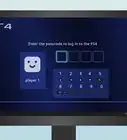
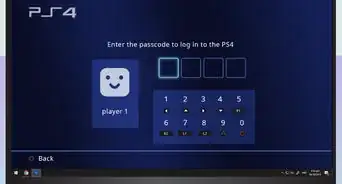
3Say "Log in." This command brings up a list of all profiles saved to your PS4.
- You can select a user by saying "User [number]." You'll see a user's number listed in the middle of their profile's card.
-
4Say the name of a game. Doing so will select it on the home page.
- This also works with apps and menu items (e.g., "Library", "Settings", or "PlayStation Store").
-
5Say "Start." This will open the game.
-
6Say "Take screenshot." Using this command at any time during the game will prompt your PS4 to save a picture of whatever is on the screen.
-
7Say "Start power." This command launches the Power menu, from which you can say one of the following commands:
- "Turn off PS4" - Turns off your PS4.
- "Enter Rest Mode" - Places your PlayStation 4 in Rest Mode, where connected controllers can still charge and downloads can proceed.
-
8Say "All commands." This command brings up a list of all of your PS4's available commands.Advertisement


Community Q&A
-
QuestionCan you use Sony's wireless Gold headset?
 Community AnswerYes you can! To enable Bluetooth devices, you'll open Settings, scroll down to Devices and press X, press X again to open the Bluetooth Devices menu, and then place your headset in pairing mode. Within around 30 seconds, your headset should show up on your PS4's display.
Warnings
- Not all headphones or headsets are compatible with the PS4. Make sure you verify that your headset will work with a PS4 before purchasing it.Thanks!
Advertisement





References
About This Article
Advertisement