This article was written by Darlene Antonelli, MA. Darlene Antonelli is a Technology Writer and Editor for wikiHow. Darlene has experience teaching college courses, writing technology-related articles, and working hands-on in the technology field. She earned an MA in Writing from Rowan University in 2012 and wrote her thesis on online communities and the personalities curated in such communities.
This article has been viewed 7,699 times.
If you're unhappy with your audio in Zoom or if other people on Zoom can't hear you, you probably need to adjust your audio settings. This wikiHow will teach you how to control those audio settings on Zoom using the Windows and Mac client. You cannot adjust your audio settings specifically for Zoom if you're using the mobile app.
Steps
-
1Open Zoom. You'll find this in your Start menu under "Z" or in the Applications folder in Finder.
-
2
-
3Click Audio. You'll see this in the menu on the left side of the Settings window next to an icon of headphones.
-
4Click Test Speaker and Test Mic to preview your audio. To hear your audio settings before changing them, perform tests for each.
- Click Stop (Speakers) or Recording (Mic) to either finish testing that output or stop recording from the microphone and play it back.
-
5Drag the sliders next to volume in "Speaker" and "Microphone" accordingly. After the initial test, you'll most likely want to make changes to your speaker and mic settings.
- After your adjustments, click Test Speaker and Test Mic again to hear the difference.
- If you change headsets and microphones consistently, you might want to check the box next to "Automatically adjust microphone volume" so the client does this automatically.
-
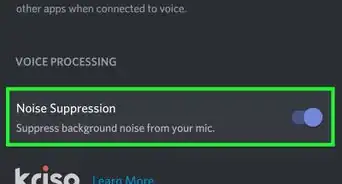
6Check and uncheck boxes as needed. You can set Zoom's ringtone to an output that isn't the default output, like using your speakers instead of your headphones. You can also change the "Suppress background noise" setting from auto to low, automatically join audio by computer when joining a meeting, mute your microphone by default when joining a meeting, press and hold the Space bar to temporarily unmute yourself in a meeting, and sync buttons on your headset.
- Click Advanced to change your echo cancellation settings and to enable or disable the option to display "Enable Original Sound" in a meeting.
-
7Close out of the menu by clicking X. Any changes you made will be automatically saved and applied to every meeting until you change them.[1]








References
About This Article

1. Open Zoom.
2. Click the gear icon and Audio.
3. Click Test Speaker and Test Mic.
4. Drag the sliders next to volume in "Speaker" and "Microphone" accordingly.
5. Check and uncheck boxes as needed.
6. Close out of the menu by clicking X.