X
wikiHow is a “wiki,” similar to Wikipedia, which means that many of our articles are co-written by multiple authors. To create this article, volunteer authors worked to edit and improve it over time.
This article has been viewed 69,769 times.
Learn more...
Connecting the Sony Xperia Z to your computer will allow you to transfer photos, music and other files between your phone and the computer. You can connect the Xperia Z to your computer using either a USB cable or Bluetooth connection.
Steps
Method 1
Method 1 of 2:Using a USB Cable
Method 1
-
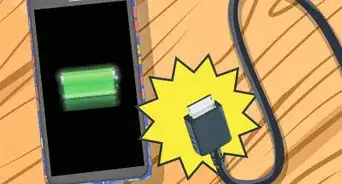
1Connect the Sony Xperia Z to your computer using a USB cable.
- By default, your computer will recommend that you download and install a program called “PC Companion” upon recognizing your Sony Xperia Z. This software is not required to transfer files between the phone and your PC, but can be helpful if you plan on transferring media files.
-
2Wait for your computer to recognize the device and display the “Autoplay” pop-up window.
-
3Click on “Open folder to view files” using Windows Explorer. Your Xperia Z will display in the left pane of Windows Explorer as an external device.
-
4Navigate to the files you want moved between devices, and drag and drop the files accordingly.[1]


Method 2
Method 2 of 2:Using Bluetooth
Method 2
-
1Tap on the Menu button from the Home screen of your Sony Xperia Z.
-
2Scroll to and tap on “Settings.”
-
3Navigate to “Bluetooth” and tap on the “On / Off” switch to enable the feature.
-
4Tap on “Bluetooth.” All nearby devices with Bluetooth enabled will display on-screen.
-
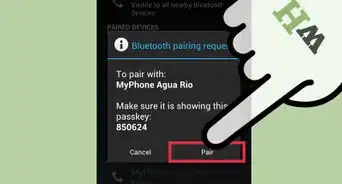
5Navigate to and tap on the name of your device from the list of devices.” Your phone will now be visible to other Bluetooth devices, including your computer.[2]
-
6Enable the Bluetooth feature on your PC.
- Refer to the manufacturer’s guide for your computer if you need guidance with enabling Bluetooth on your PC.
-
7Choose your Sony Xperia Z from the list of Bluetooth devices when prompted to select a device. Your phone will now be connected to your computer.


Community Q&A
-
QuestionWhat should I do if my USB device is not recognized?
 Community AnswerTry a different USB port; you may be using the USB 3.0, which is a data-transfer port instead of a file hookup.