X
wikiHow is a “wiki,” similar to Wikipedia, which means that many of our articles are co-written by multiple authors. To create this article, 18 people, some anonymous, worked to edit and improve it over time.
This article has been viewed 270,752 times.
Learn more...
In this article, we will learn how to connect an external Television tuner card to your desktop, such that when you power on the tuner card, you can watch TV and when you power it off, you are back to your normal desktop (running any operating system).
Steps
-
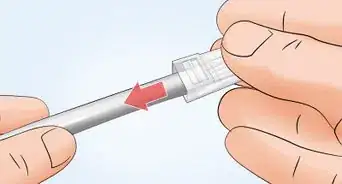
1Open up the box packing the TV tuner card, its remote and a few cables.
-
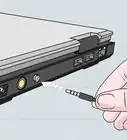
2Plug out the speaker jack from your sound-card (which is usually located at the back of the CPU cabinet).Advertisement
-
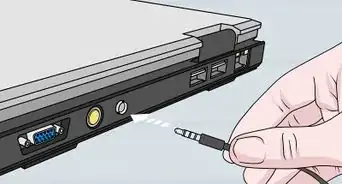
3Insert the cable(which has a similar jack like your speaker's jack that was plugged into the sound card) that came along with the packaging in the place of the speaker jack into your sound card.
-
4The other end of this cable should be plugged into the "Sound-out" socket of the TV tuner card.
-
5The speaker jack should be plugged into the "Sound-In" socket of the TV tuner card.
-
6Plug out the monitor display cable from the back of the CPU cabinet and plug it into the TV tuner card. The socket on the card looks similar to the one on the CPU cabinet.
-
7Now, take the other cable that had come bundled with the tuner card and plug one of its end into the monitor socket on the CPU cabinet.(The plug looks similar to the plug on your monitor cable).
-
8Plug the other end of this cable into the "VGA-Out" socket of the tuner card.
-
9Take the power adapter that came bundled with the card and plug it into a power source.
-
10The output cable of the power adapter needs to be plugged into the "Power-In" socket of the tuner card.
-
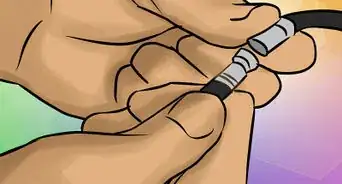
11Insert the terrestrial antenna jack into the antenna socket of the card.
-
12Switch on the entire setup. (In some cases, you could hear a beeping sound from the speakers).
-
13Use the remote control bundled with the card and make sure it has proper batteries in it.
-
14Press the power button and the desktop monitor should show some display resembling a disturbed TV transmission.
-
15Treat the setup like a regular TV and tune the channels.
-
16Turn the TV off, and you can continue working on your desktop normally.Advertisement


Community Q&A
-
QuestionHow many channels will be available?
 Community AnswerThis depends on how you get your signal. This will usually not work with a cable connection as the channels are encoded. If you use an antenna, go to tvfool.com or antennaweb.org to check which channels are in your exact location. Then (and only then), see what kind of antenna would reach that far. The general rule is the farther away the signal is, the farther from the ground you should get.
 -
QuestionHow do I connect a set top box to an LED monitor with an HDMI cable?
 Community AnswerIt depends if your monitor has a HDMI input. If it doesn't, then you could get an adapter.
 -
QuestionI don't have a CPU. Can I tune the TV with only a monitor?Community AnswerNo, a desktop has to have a CPU unless it's on an Apple TV. If its a PCU, put it in the USB plugholes. If it's on the Apple computer, behind the screen are the holes where you can plug a USB.
-
QuestionHow many signals can connect on my laptop?
 Community AnswerAs many as your laptop can use. You can go to your laptop's manufacturing website (like Apple.com for Mac users) and check your laptop's specifications.
 -
QuestionCan I use a monitor to DTH through VGA to an RCA cable?
 Community AnswerNo, it won't work. You will need a TV tuner for that. I'm currently using a external tuner to watch TS SD on my monitor.
Warnings
- Make sure that when you are plugging in cables, the power is turned off.Thanks!
Advertisement
Things You'll Need
- A desktop
- An external TV-tuner card with all its cables.
-Step-8-Version-3.webp)
About This Article
Advertisement
-Step-8-Version-3.webp)