This article was written by Darlene Antonelli, MA. Darlene Antonelli is a Technology Writer and Editor for wikiHow. Darlene has experience teaching college courses, writing technology-related articles, and working hands-on in the technology field. She earned an MA in Writing from Rowan University in 2012 and wrote her thesis on online communities and the personalities curated in such communities.
This article has been viewed 3,054 times.
This wikiHow teaches you how to connect a Fitbit Charge 2 to an iPhone, which is a fairly simple process. First, you'll need to get the Fitbit app if you don't have it already, then you'll be able to connect your Charge 2 to your iPhone.
Steps
Part 1
Part 1 of 2:Pairing to Your Charge 2
-
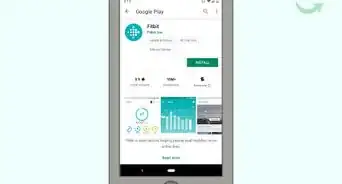
1Download and install the Fitbit app from the App Store . This is a free app that you'll need to download on your iPhone to be able to connect your devices.
- When you open the app for the first time, you can login with a current account or create a new one. To create a new account, you'll need to enter information like your height, weight, and birth date.
-
2Tap Account. This also has the icon of an ID card that you can find either on the right bottom or top right of your screen.
- A page of all your active devices will load.
Advertisement -
3Tap Set Up a Device. You'll see this under your name and any other synced devices.
-
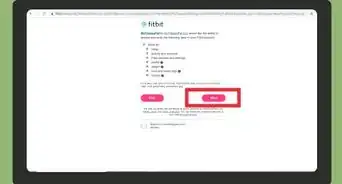
4Tap Charge 2 and set up your Fitbit. Tap Ok in the pop-up that alerts you to turn on Bluetooth, then tap I agree once you've read and agreed to Fitbit's terms and policies.
-
5Turn on your iPhone's Bluetooth (if it's off). Swipe to open your Control Center, then tap the Bluetooth symbol to turn it on.
- Skip this step if your phone's Bluetooth is already on.
-
6Tap Next. The app will introduce you to your Charge 2 and its components.
-
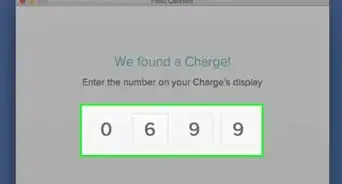
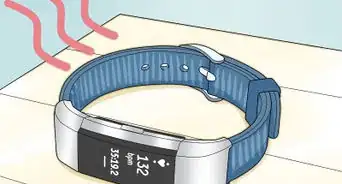
7Power on your Charge 2 (if it's off). It should automatically power on once it's fully charged.
- Your watch should display a four-digit code once your iPhone detects it.
-
8Enter the code displayed on your watch into the app on your iPhone. Use the keypad to enter the four-digit code and your phone should automatically detect when you enter it correctly.
- Tap Pair on your phone if prompted.
Advertisement


Part 2
Part 2 of 2:Setting up Your Charge 2
-
1Tap Next through the walk-through screens. Fitbit gives you a little tutorial on using your Fitbit with your iPhone including how to use navigation features.
-
2Set up GPS on your iPhone. Tap "Always Allow" or "Only While Using the App" to enable GPS tracking on your iPhone. If you do not want Fitbit to track your location, tap "Don't Allow."
-
3Tap Next through the walk-through. You'll also get tips on how to use your Charge 2 to follow guided breathing sessions and connect to social media.
-
4Select if you wear your Fitbit on your left or right wrist then tap Next. Tap the wrist icon to make your selection.
-
5Tap Next through the rest of the tutorial and finally Done. Your Fitbit Charge 2 has successfully been connected to your iPhone. To make any changes, revisit the "Accounts" tab and select the Charge 2.[1]Advertisement




References
About This Article

1. Download and install the Fitbit app from the App Store.
2. Tap the Account tab.
3. Tap Set Up a Device.
4. Tap Charge 2.
5. Turn on your iPhone's Bluetooth (if it's off).
6. Tap Next.
7. Power on your Charge 2 (if it's off).
8. Enter the code displayed on your watch into the app on your iPhone.