This article was written by Darlene Antonelli, MA. Darlene Antonelli is a Technology Writer and Editor for wikiHow. Darlene has experience teaching college courses, writing technology-related articles, and working hands-on in the technology field. She earned an MA in Writing from Rowan University in 2012 and wrote her thesis on online communities and the personalities curated in such communities.
This article has been viewed 1,823 times.
This wikiHow will teach you how to connect Alexa to your Fitbit Sense, Fitbit Versa 2, and Fitbit Versa 3 as well as give you a few tips to use the voice assistant. Once you've connected your Fitbit to Alexa, you can use voice controls to keep track of your fitness goals.
Steps
-
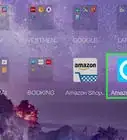
1Open the Fitbit app on your mobile phone or tablet. This app icon looks like a blue background with white dots on it. You can find this app on either your home screen, in the app drawer, or by searching.
- If you don't have the Fitbit mobile app, you can download it for free from either the Google Play Store or App Store.
-
2Tap your account picture. You'll find this in the top left corner of your screen and see a list of all your connected devices.
-
3Tap your Fitbit. An icon of the associated Fitbit is displayed beside the model name.
-
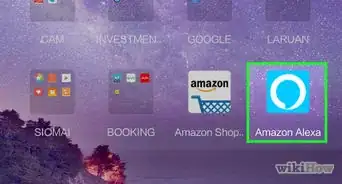
4Tap the Amazon Alexa tile. It should be the first tile in the list with the Alexa icon.
-
5Tap Login with Amazon. You can swipe through the tips at the top of the page before tapping to log in.
- Once you tap, you'll be redirected to an Amazon login page.
-
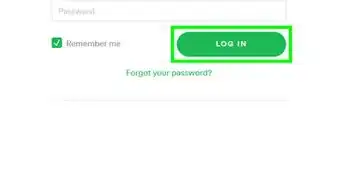
6Enter your Amazon account's email (or phone number) and password. If you don't have an account, tap Create a new Amazon account to use Alexa.
-
7Tap Allow. You'll need to give Fitbit permission to access Alexa and your account connection.
-
8Tap Use location. This will let you share your current location with Alexa and get relevant information to you. If you don't want to use this feature, tap Not now.[1]
-
9Tap Allow All and Allow. This gives Alexa the permissions to access your activity/exercise, sleep, profile, friends, weight, Fitbit devices and settings, food/water logs, and heart rate.
- If you don't choose to allow all, the Alexa Skill may not work properly.
- After you allow all permissions, Alexa is connected with your Fitbit.[2]




References
About This Article

1. Open the Fitbit app on your mobile device.
2. Tap your account picture.
3. Tap your device.
4. Tap the Amazon Alexa tile.
5. Tap Login with Amazon.
6. Enter your Amazon account's email (or phone number) and password.
7. Tap Allow, Use location, Allow all, and Allow.