X
This article was written by Jack Lloyd. Jack Lloyd is a Technology Writer and Editor for wikiHow. He has over two years of experience writing and editing technology-related articles. He is technology enthusiast and an English teacher.
This article has been viewed 1,491 times.
This wikiHow teaches you how to clear an unread notification from your Apple Watch, as well as how to clear all unread notifications.
Steps
Method 1
Method 1 of 2:Clearing a Single Notification
Method 1
-
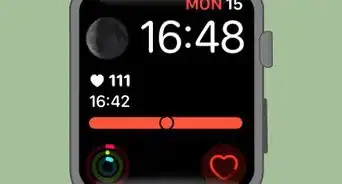
1Wake up your Apple Watch's screen. Raise your Apple Watch wrist, or press the Digital Crown or Power button.
-
2Find a notification to clear. Scroll down until you find the notification that you want to clear.Advertisement
-
3Swipe from right to left over the notification. Doing so will slide the notification over to the left.
-
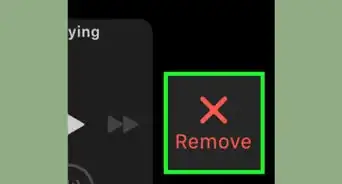
4Tap Clear. It's on the right side of the notification. This will clear the notification and mark it as read.Advertisement


Method 2
Method 2 of 2:Clearing All Notifications
Method 2
-
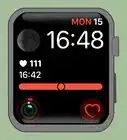
1Wake up your Apple Watch's screen. Raise your Apple Watch wrist, or press the Digital Crown or Power button.
-
2Press the Digital Crown. This will close the currently open notifications and return you to the clock screen.
-
3Swipe down from the top of the screen. Doing so drags down a menu with all of your unread notifications.
-
4Force-press the screen. Press down hard on the screen to prompt a pop-up menu.
-
5Tap Clear All. It's in the pop-up menu. Doing so clears all of your unread notifications and marks them as read.Advertisement


Warnings
- Clearing a notification also marks it as read on both your Apple Watch and your iPhone.Thanks!
Advertisement

About This Article
Article SummaryX
1. Wake up your Apple Watch's screen.
2. Find a notification to clear.
3. Swipe left over the notification.
4. Tap Clear
Did this summary help you?
Advertisement