X
This article was written by Nicole Levine, MFA. Nicole Levine is a Technology Writer and Editor for wikiHow. She has more than 20 years of experience creating technical documentation and leading support teams at major web hosting and software companies. Nicole also holds an MFA in Creative Writing from Portland State University and teaches composition, fiction-writing, and zine-making at various institutions.
This article has been viewed 10,425 times.
This wikiHow teaches you how to free up storage space on an Xbox One by deleting apps, games, screenshots, and video clips.
Steps
Method 1
Method 1 of 2:Deleting Games and Apps
Method 1
-
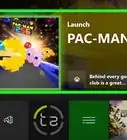
1Select My games & apps. It’s near the top-right corner of the Home screen.[1]
-
2Select Sort by last used from the drop-down menu. This re-orders the list, moving the games and apps you use the least to the bottom.
- If you prefer to arrange the list in order of size (largest to smallest) to see what’s taking up the most space, select Sort by size instead.
Advertisement -
3Scroll down to find games and apps you no longer use.
- If you sorted by size, the games and apps taking up the most storage space are at the top of the list.
-
4Select an app or game you want to uninstall.
-
5Press the menu. It’s the three horizontal lines on your game controller.
-
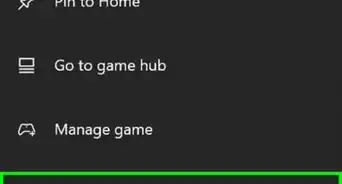
6Select Manage game or Manage app.
-
7Select Uninstall all. You can repeat these steps for any other game or app you want to uninstall.Advertisement


Method 2
Method 2 of 2:Deleting Screenshots and Video Clips
Method 2
-
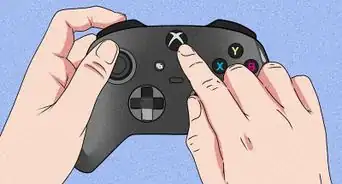
1Press the Xbox button on the controller. It’s the button with the ″X″ at the top of the controller. This opens the guide menu.[2]
-
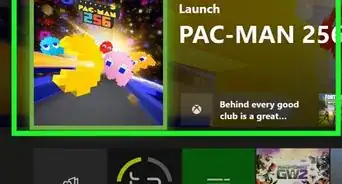
2Select Home. It’s at the top of the menu.
-
3Press the Xbox button again to open the guide menu.
-
4Press the View button. It’s the two overlapping squares. This opens the ″Recent captures″ menu.
-
5Select a video clip or you want to delete. A menu will appear.
- If you don’t see a clip you’re looking for, select See All at the bottom.
-
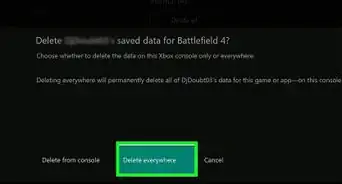
6Select Delete from console. This deletes the video from your Xbox while keeping the copy that resides on the Xbox Live server.
-
7Select a screenshot you want to delete. This opens a preview of the screenshot.
-
8Select the trash can icon. This deletes the screenshot from your Xbox.
-
9Repeat these steps to delete additional files. The more screenshots and videos you delete, the more storage space you’ll free up for other uses.Advertisement


References
About This Article

Nicole Levine, MFA
Tech Specialist
This article was written by Nicole Levine, MFA. Nicole Levine is a Technology Writer and Editor for wikiHow. She has more than 20 years of experience creating technical documentation and leading support teams at major web hosting and software companies. Nicole also holds an MFA in Creative Writing from Portland State University and teaches composition, fiction-writing, and zine-making at various institutions. This article has been viewed 10,425 times.
Co-authors: 2
Updated: June 19, 2019
Views: 10,425
Categories: Xbox One
Article SummaryX
1. Select My games & apps.
2. Select a game or app to delete.
3. Press the menu button.
4. Select Manage game or Manage app.
5. Select Uninstall all.
Did this summary help you?
Advertisement