This article was co-authored by wikiHow Staff. Our trained team of editors and researchers validate articles for accuracy and comprehensiveness. wikiHow's Content Management Team carefully monitors the work from our editorial staff to ensure that each article is backed by trusted research and meets our high quality standards.
The wikiHow Tech Team also followed the article's instructions and verified that they work.
This article has been viewed 5,907 times.
Learn more...
This wikiHow teaches you how to claim an available game loot with your Twitch Prime account, using an internet browser. Twitch Prime loots offer you free items, skins, and other in-game content in various games. Once you claim a loot on the website, the loot items will be automatically transferred to your game.
Steps
-
1Open Twitch in your internet browser. Type https://www.twitch.tv into your browser's address bar, and press ↵ Enter or ⏎ Return on your keyboard.
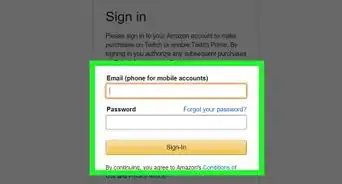
- If you're not automatically signed in, click the Log In button on the top-right, and log in to your Twitch Prime account.
-
2Click the white crown icon on the top-right. You can find this button next to the Notifications bell icon on a purple navigation bar near the top-right corner. It will open a list of all the available Prime loot in a drop-down window.Advertisement
-
3Click the purple Learn More button under a loot. This will redirect you to the selected loot's details on a new page.
- You can also click Visit the Twitch Prime Loot Page at the top of the window, and see a list of all the available Prime loots on a new page.
-
4Find and click the Claim Loot or Claim Now button. This button will automatically claim the selected loot, and transfer your new items to your game.
- If your Twitch is not already connected to your game account (including Epic Games, Steam, and PS4), you'll be prompted to link your accounts here.
- For some games and loots, you may have to click a preliminary button like Click Here For Your Loot.
-
5Open your game. Your loot items will be automatically added to your game inventory.
- You may need to restart the game in order to receive your items.
Advertisement


About This Article

1. Open https://www.twitch.tv.
2. Click the white crown icon on the top-right.
3. Click Learn More under a loot.
4. Find and click Claim Loot or Claim Now.