X
wikiHow is a “wiki,” similar to Wikipedia, which means that many of our articles are co-written by multiple authors. To create this article, volunteer authors worked to edit and improve it over time.
The wikiHow Tech Team also followed the article's instructions and verified that they work.
This article has been viewed 134,832 times.
Learn more...
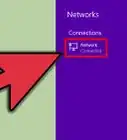
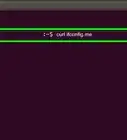
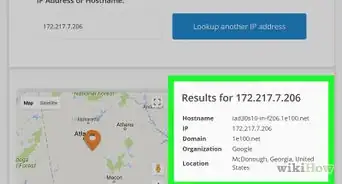
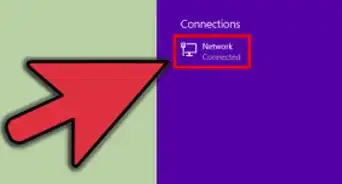
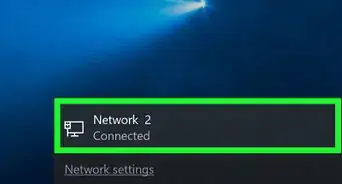
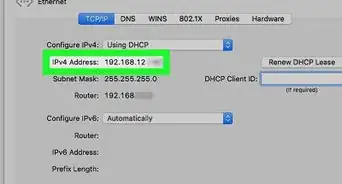
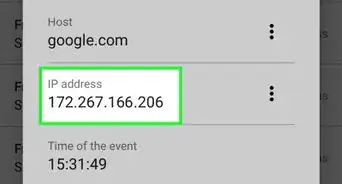
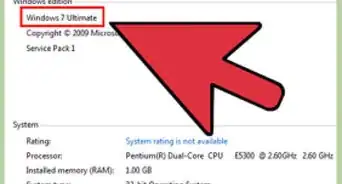
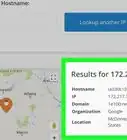
Should you ever need to check your computer's IP address, this short How-To will get the job done! (This works for all versions of Windows)
Steps


Community Q&A
-
QuestionWhen we scan documents on the copier to send to our computers, the document goes to a folder but then tells us the server cannot be found. How can I make sure it goes to my PC?
 Allan CramerCommunity AnswerYou would want to look into port settings on your computers to ensure the connections are correct. It's usually located in "Devices and Printers." As for ports, they are unique to your computer and the other device. If the ports are wrong, the data isn't getting transferred correctly. Think of it like trying to fit a cube in a circle hole, the cube being your data and the hole being the port to your computer.
Warnings
- Be sure not to share your IP address with anybody you don't trust.Thanks!
Advertisement
-Step-23-Version-2.webp)


About This Article
Advertisement
-Step-23-Version-2.webp)