X
This article was written by Jack Lloyd. Jack Lloyd is a Technology Writer and Editor for wikiHow. He has over two years of experience writing and editing technology-related articles. He is technology enthusiast and an English teacher.
This article has been viewed 147,646 times.
This wikiHow teaches you how to check your Sprint plan's used minutes on your phone.
Steps
Method 1
Method 1 of 3:Using Your Phone
Method 1
-
1Open your phone's Dialer app. It's a white phone on a green background on iPhone, and a blue phone image on Android.
-
2Tap the "Keypad" button. This option is the Keypad tab at the bottom of the screen on iPhone, and the array of dots near the middle of the screen on Android.Advertisement
-
3Type *4 into the dialer, then tap the "Call" button. The "Call" button is the phone-shaped icon at the bottom of the screen.
-
4Press 4 when prompted. This command will prompt Sprint to begin listing your phone's various usages, including your used minutes.[1]
- You may first have to enter your account PIN.
-
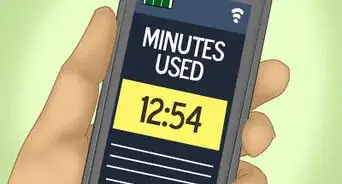
5Listen for the "Minutes" value. This spoken value will tell you how many minutes you've used thus far.Advertisement
-Step-1-Version-4.jpg)
-Step-2-Version-4.jpg)
-Step-3-Version-4.jpg)
-Step-4-Version-4.jpg)
-Step-5-Version-4.jpg)
Method 2
Method 2 of 3:Using the Sprint App
Method 2
-
1
-
2Tap the dial icon. It's a tab that's either at the bottom of the screen (iPhone) or at the top of the screen (Android). Doing so will open your usage page.
- If you aren't already logged in, first enter your username and password, then tap Sign In.
-
3Tap the Talk option. This will expand it to show your current minutes and the total number of minutes available.
-
4Review your remaining minutes. The number on the left side of the "/" icon is the number of minutes you've used during the current billing cycle, while the number on the right side correlates with your total available minutes.
- If you have unlimited minutes, you'll see something like "123 / Unlimited" here.
Advertisement
-Step-6-Version-4.jpg)
-Step-7-Version-3.jpg)
-Step-8-Version-2.jpg)
-Step-9-Version-2.jpg)
Method 3
Method 3 of 3:Using the Sprint Website
Method 3
-
1Go to the Sprint website. It's located at https://www.mysprint.sprint.com/.
-
2Click Sign in. This option is in the top-right corner of the page.
-
3Enter your username and password. You'll do so in the "Username" and "Password" fields, respectively.
-
4Click Sign in. It's a yellow button at the bottom of the pop-up window.
-
5Click My Sprint. This tab is near the top of the page.
-
6Scroll down and click See all usage. You'll see this option to the right of your current phone.
- Make sure that you're clicking See all usage next to your phone, not another phone on the plan.
-
7View the "Minutes" value. It's at the top of the "Detailed usage" page; you should see a bar here that has "[minutes used]/[total minutes available]" on the far-right side of it.
- For example, if your plan has 1000 minutes and you used 500 of them, you'd see "500/1000" here.
Advertisement
-Step-10-Version-2.jpg)
-Step-11-Version-2.jpg)
-Step-12-Version-2.jpg)
-Step-13-Version-2.jpg)
-Step-14-Version-2.jpg)
-Step-15-Version-2.jpg)
-Step-16-Version-2.jpg)
Community Q&A
-
QuestionHow do I check my data usage on a Samsung Galaxy 3 with Sprint prepaid?
 Community AnswerYou can go into your settings and scroll down to "data." You will be able to check your data usage here.
 -
QuestionHow do I find out how long I talked on one call the night before?Community AnswerClick icon or menu on your phone and it should be under call logs. There, it will show dates and times calls were made.
Warnings
- Going over your minutes will typically incur extra charges.Thanks!
Advertisement




About This Article
Article SummaryX
1. Open your phone's dialer.
2. Type *4 into the dialer.
3. Press the "Call" button.
4. Press 4.
5. Listen for the "Minutes" value.
Did this summary help you?
Advertisement