This article was written by Travis Boylls. Travis Boylls is a Technology Writer and Editor for wikiHow. Travis has experience writing technology-related articles, providing software customer service, and in graphic design. He specializes in Windows, macOS, Android, iOS, and Linux platforms. He studied graphic design at Pikes Peak Community College.
This article has been viewed 7,512 times.
This wikiHow teaches you how to check the size of a MySQL database. You can check the size of a database using MySQL Workbench, or by running a query in MySQL.
Steps
Method 1
Method 1 of 2:Using MySQL Workbench
-
1Open MySQL Workbench. It has a blue icon that with an image that resembles a dolphin. Click the icon to launch MySQL Workbench.
-
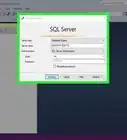
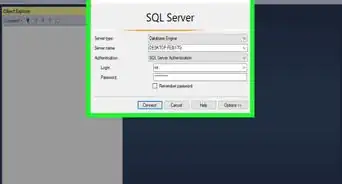
2Connect to the MySQL server. Double-click the MySQL server on under the SQL Development module in the start-up screen. Then enter the database password to connect. [1]
- If SQL server is not listed on this screen, click New Connection and enter the server information, including hostname, port, username, and password.
Advertisement -
3Hover over the database in the schema pane. It's in the sidebar to the left. This displays a couple of icons to the right of the database name.
-
4Click the information icon. It's the icon that resembles an "i" next to the database name in the schema pane.
-
5Click the Info tab. It's the first tab in the main pane in the center. This displays information about the database. The database size is listed next to "Database size (rough estimate). this displays a rough estimate of the size of the database. [2]Advertisement


Method 2
Method 2 of 2:Running a Query
-
1Connect to a MySQL server. There are a number of apps you can use to connect to a MySQL database, including MySQL Workbench. You can also query a MySQL database in the command line in Windows, or terminal on Mac. Once MySQL is installed on your computer you'll need to navigate to the MySQL directory in the Windows command line and type mysql -u root -p. Then enter the password for your database.
-
2Type SELECT table_schema "DB Name", as the first line of your query. This is the select command to query run a query on the database.
-
3Type SUM(data length + table length) 'Size in bytes', as the second line. This command will display the size of each table in bytes.
-
4Type ROUND(SUM(data_length + index_length) / 1024 / 1024, 2) 'Size in MiB' as the next line. This displays a rounded number of the size in megabytes.
- To display a rounded number in kilobytes, type ROUND(SUM(data_length + index_length) / 1024, 2) 'Size in KiB' instead.[3]
-
5Type FROM information_schema.tables as the last line. This command specifies which database tables to query.
-
6Type GROUP BY table_schema; and execute the query. This will display the size of your databases. You can also type {[kbd|WHERE table_schema = 'database name';}} to check the size of a specific database. Type the actual name of the database in place of "database name". Your query should look something like this:
  SELECT table_schema "DB Name"
      SUM(data length + table length) 'Size in bytes',
      ROUND(SUM(data_length + index_length) / 1024 / 1024, 2) 'Size in MiB'
FROM information_schema.tables
GROUP BY table_schema;
Advertisement











References
About This Article

1. Connect to your MySQL server in MySQL Workbench.
2. Hover over the database in the Schema pane.
3. Click the information icon.
4. Click the Info tab.
5. Check the estimated database size.