X
This article was written by Nicole Levine, MFA. Nicole Levine is a Technology Writer and Editor for wikiHow. She has more than 20 years of experience creating technical documentation and leading support teams at major web hosting and software companies. Nicole also holds an MFA in Creative Writing from Portland State University and teaches composition, fiction-writing, and zine-making at various institutions.
The wikiHow Tech Team also followed the article's instructions and verified that they work.
This article has been viewed 4,423 times.
This wikiHow teaches you how to add a new email address to the “Reply-to” field in Outlook (2010 and later) for Windows.
Steps
-
1Open Outlook. It’s the envelope icon with an “O” in the Windows menu. The icon is either blue or yellow, depending on your version of Outlook.
-
2Click File. It’s near the top-left corner of the screen.Advertisement
-
3Click Info. It’s in the left column.
-
4Click Account Settings. It’s in the center panel.
-
5Click the account you want to edit. Just click once to highlight it.
-
6Click Change. It’s right above the list of accounts.
-
7Click More Settings. It’s near the bottom-right corner of the window.
-
8Click the General tab. If you’re already there, you can skip this step.
-
9Enter your reply address into the "Reply Email" blank. It's the final blank on the current window. The wording may be a little different depending on your version of Outlook.
-
10Click OK.
-
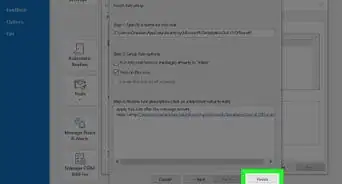
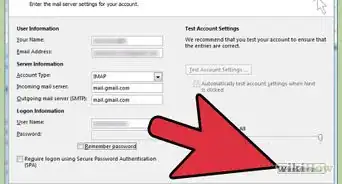
11Click Next.
-
12Click Finish.
-
13Click Close. Now when people reply to your messages, they’ll be addressed to your updated reply-to email address.Advertisement


About This Article

Nicole Levine, MFA
Tech Specialist
This article was written by Nicole Levine, MFA. Nicole Levine is a Technology Writer and Editor for wikiHow. She has more than 20 years of experience creating technical documentation and leading support teams at major web hosting and software companies. Nicole also holds an MFA in Creative Writing from Portland State University and teaches composition, fiction-writing, and zine-making at various institutions. This article has been viewed 4,423 times.
How helpful is this?
Co-authors: 1
Updated: July 27, 2017
Views: 4,423
Categories: Outlook
Advertisement