This article was written by Darlene Antonelli, MA. Darlene Antonelli is a Technology Writer and Editor for wikiHow. Darlene has experience teaching college courses, writing technology-related articles, and working hands-on in the technology field. She earned an MA in Writing from Rowan University in 2012 and wrote her thesis on online communities and the personalities curated in such communities.
This article has been viewed 17,099 times.
This wikiHow will show you how to change the language in Word. You can easily change the editing, display, and priority languages on a Windows computer, but if you have a Mac, Android, or iOS device, you cannot set Word to a language other than what your OS uses. However, you can specify a different editing language on these devices.
Steps
Method 1
Method 1 of 3:Using Android and iOS
-
1Open Word. This document icon looks like two pieces of paper, one with a bunch of lines and one with a large "W." You can find this app on your Home screen, in the app drawer, or by searching.
-
2Tap the icon that looks like a pencil and an "A" at the top of your screen. This will open the editing menu.
-
3Tap Home. You'll see a list of options.
-
4Tap Review. The menu options to the right will change.[1]
-
5Tap Proofing and Language. The options in the menu will change again.
-
6
-
7Tap the language you want for your document. You'll be redirected back to the previous menu.
- You can tap to select boxes next to "Hide All Proofing Marks" and "Hide Proofing Marks in Selected Text" if you want your current text to remain un-edited.[2]


Method 2
Method 2 of 3:Using Windows
-
1Open a document in Word. You can open a project you're working on or you can create a new document to change these settings. But any settings you edit will apply every time you open Word. For example, if you set the language to French from a new document, the language will still be in French when you open Word later.
-
2Click File. You'll find this in the editing ribbon above the document.[3]
-
3Click Options. A new window will open.
-
4Click Language. You'll see this tab in the left pane. A new window titled, "Set the Office Language Preferences" will open.
-
5Choose an "editing language." Remember that changing the language here will also change any language-specific features including dictionaries, grammar checking, and spelling.
- For example, if you type "casa" instead of "case" and your language is set to Spanish, Word won't suggest it's incorrectly spelled.
-
6Click Set as Default to confirm.
-
7Choose "Display and Help Languages." This will change the language of any dialogue box that pops up.
-
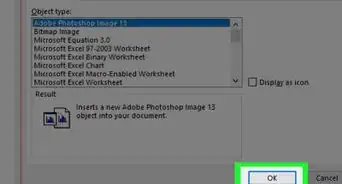
8Click OK. The "Set the Office Language Preferences" window will close and your settings will be applied.


Method 3
Method 3 of 3:Using macOS
-
1Open a document in Word. You can open a project you're working on or you can create a new document to change these settings. But any settings you edit will apply every time you open Word. For example, if you set the language to French from a new document, the language will still be in French when you open Word later.
- If you want to change the display and help languages, you'll have to change your OS language in Apple menu>System Preferences>Language&Region.
-
2Click Tools. You'll see this in the menu along the top of your screen.[4]
-
3Click Language. A new window will pop-up.
-
4Click to select your language. If you want this to apply to every instance you open Word, click Default. If you don't set the language as the default, then Word will return to the original language the next time you open it.
-
5Click OK. You'll see this in the bottom right of the pop-up window.















References
- ↑ https://support.office.com/en-us/article/change-the-language-office-uses-in-its-menus-and-proofing-tools-f5c54ff9-a6fa-4348-a43c-760e7ef148f8#ID0EAACAAA=iOS
- ↑ https://support.office.com/en-us/article/change-the-language-office-uses-in-its-menus-and-proofing-tools-f5c54ff9-a6fa-4348-a43c-760e7ef148f8#ID0EAACAAA=Android
- ↑ https://support.office.com/en-us/article/add-an-editing-language-or-set-language-preferences-in-office-663d9d94-ca99-4a0d-973e-7c4a6b8a827d
- ↑ https://support.office.com/en-us/article/change-the-language-office-uses-in-its-menus-and-proofing-tools-f5c54ff9-a6fa-4348-a43c-760e7ef148f8#ID0EAACAAA=MacOS
About This Article

1. Open Word.
2. Tap the edit icon that looks like an "A" and pencil.
3. Tap Home and Review.
4. Tap Proofing and Language.
5. Tap the right-pointing arrow next to the current language.
6. Tap the language you want for your document.