X
This article was written by Jack Lloyd. Jack Lloyd is a Technology Writer and Editor for wikiHow. He has over two years of experience writing and editing technology-related articles. He is technology enthusiast and an English teacher.
The wikiHow Tech Team also followed the article's instructions and verified that they work.
This article has been viewed 14,306 times.
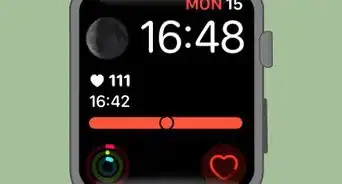
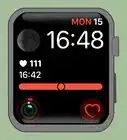
This wikiHow teaches you how to change and edit the clock—also known as the Watch Face—on your Apple Watch. You can do this on both the Apple Watch and the synchronized iPhone.
Steps
Method 1
Method 1 of 4:Setting a Watch Face on Apple Watch
Method 1
-
1Unlock your Apple Watch. Raise your Apple Watch wrist to wake up the Apple Watch's screen, press the Digital Crown, and enter your passcode if prompted.
- If there are notifications on the screen, press the Digital Crown twice.
-
2Force-press the Watch Face. Doing this will cause the Watch Face to zoom out.
- Don't worry about pressing too hard on the screen—the Watch Face will zoom out long before you run the risk of damaging the Apple Watch.
-
3Scroll through the available Watch Faces. Swipe left or right over the screen to scroll through all currently available Watch Faces until you find one that you like.
-
4Tap Customize. It's below the Watch Face that you want to use. Doing so will open the Watch Face's customization options.
- Some Watch Faces, such as the Solar and Astronomy Watch Faces, cannot be customized.
-
5Customize your selected Watch Face. Each Watch Face will have different customization options; you can scroll through them by swiping across the Apple Watch's screen from right to left, and you can cycle through customization options (e.g., colors) by rotating the Digital Crown dial.
-
6Edit your Watch Face's Complications. Complications are shortcuts to apps (e.g., the Activity app) on your Apple Watch; these shortcuts appear in the corners of the Apple Watch Face. To edit Complications:
- Scroll over to the Complications screen, which usually has a white box around each of the default Complications.
- Tap a Complication's box.
- Rotate the Digital Crown dial to scroll through available options.
- Repeat with other Complications.
-
7Save your Watch Face. Press the Digital Crown twice to do so. Your Watch Face will be saved and set as your Apple Watch's current Watch Face.


Method 2
Method 2 of 4:Selecting a Watch Face on iPhone
Method 2
-
1Open the Watch app on your iPhone. Tap the Watch app icon, which resembles a black-and-white side view of an Apple Watch.
-
2Tap My Watch. It's in the bottom-left corner of the screen.
- If you have more than one Apple Watch synchronized to your iPhone, select the Apple Watch that you want to customize before proceeding.
-
3Scroll through the available Watch Faces. In the middle of the page, you'll see a row of Apple Watch Faces; swipe from right to left over these to scroll through them.
-
4Select a Watch Face. Tap a Watch Face that you want to use on your Apple Watch.
-
5Select Watch Face preferences. Each Apple Watch will have different customization options (e.g., hand color), so change the preferences on this page to your liking.
-
6Scroll down to the "Complications" section. It's near the bottom of the page.
-
7Select Complications. Complications are shortcuts to apps (e.g., the Activity app) on your Apple Watch; these shortcuts appear in the corners of the Apple Watch Face. To select a Complication:
- Tap a position (e.g., Top Left)
- Select a complication by scrolling to an app's name, or scroll up to the Off option.
- Tap the position again to confirm your selected choice.
-
8Scroll down and tap Set as current Watch Face. This option is at the bottom of the page. Doing so sets your customized Watch Face as your current Apple Watch Face.
- After doing this, you can tap the "Back" button in the top-left corner of the screen to return to the My Watch page.


Method 3
Method 3 of 4:Adding a New Watch Face on Apple Watch
Method 3
-
1Unlock your Apple Watch. Raise your Apple Watch wrist to wake up the Apple Watch's screen, press the Digital Crown, and enter your passcode if prompted.
- If there are notifications on the screen, press the Digital Crown twice.
-
2Force-press the Watch Face. Doing this will cause the Watch Face to zoom out.
- Don't worry about pressing too hard on the screen—the Watch Face will zoom out long before you run the risk of damaging the Apple Watch.
-
3Scroll all the way to the right and tap New. Doing so will open a list of available Watch Faces.
-
4Look for a Watch Face that you like. Scroll down through the available Watch Faces until you find one that you like.
-
5Select a Watch Face. Tap the Watch Face that you want to add to your Apple Watch. Doing so will both add the Watch Face to your Apple Watch and set it as your Apple Watch's default Face.
- After adding a Watch Face to your Apple Watch, you can customize the Watch Face both on your Apple Watch and in your iPhone's Watch app.


Method 4
Method 4 of 4:Adding a New Watch Face on iPhone
Method 4
-
1Open the Watch app on your iPhone. Tap the Watch app icon, which resembles a black-and-white side view of an Apple Watch.
-
2Tap the Face Gallery tab. It's at the bottom of the screen.
-
3Scroll through the available Faces. The available Watch Faces are organized by appearance; you can scroll down to view each category, while scrolling from right to left over a category's row will show you more Watch Face options from that category.
-
4Select a Watch Face. Tap the Watch Face that you want to add to your Apple Watch. The Face's page will open.
-
5Tap ADD. It's to the right of the Watch Face's name. Doing so will both add the Watch Face to your Apple Watch and set it as your Apple Watch's current Watch Face.
- After adding a Watch Face to your Apple Watch, you can customize the Watch Face both on your Apple Watch and in your iPhone's Watch app.


Community Q&A
-
QuestionHow do I change the world clock on the Apple Watch?
 Chris (Byankno1)Top AnswererWorld Clocks on the Apple Watch must be changed from the Clock app on the paired iPhone. If it isn't already on the World Clock tab after you tap the Clock App, tap World Clock, then use the Edit button to select a clock. Move the items around or add a new clock by tapping the + button in the top right corner, finding the clock by city in the time zone and removing the other clocks that you no longer want (swipe left until the Delete button appears, then tap the Delete button).
Warnings
- Some Apple Watch Faces do not support customization.Thanks!