This article was written by Darlene Antonelli, MA. Darlene Antonelli is a Technology Writer and Editor for wikiHow. Darlene has experience teaching college courses, writing technology-related articles, and working hands-on in the technology field. She earned an MA in Writing from Rowan University in 2012 and wrote her thesis on online communities and the personalities curated in such communities.
For security and personal reasons (like a newer password that will be easier to remember and harder for hackers to guess), you'll want to change your password occasionally. This wikiHow article will teach you how to change your PLDT WiFi password when you're connected to your WiFi network. Be aware that PLDT provides service only in the Philippines.
Steps
-
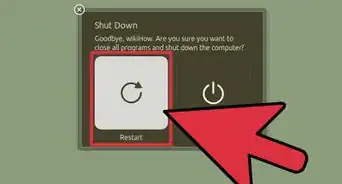
1Reset your modem (only if you changed your password and forgot it). You don't need to do this and can skip to the next step if you've never changed your default password or remember what you've changed it to.
- Using a pin or needle, press and hold the small button located near the Power button on your modem for about 5 seconds. Doing this will reset your modem to factory settings, including changing the username and password back to the defaults.
-
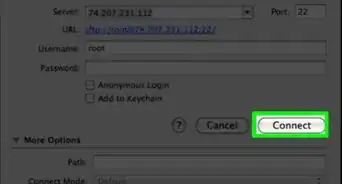
2Go to http://192.168.1.1 in your web browser's address bar. This will open up your modem's user interface.
-
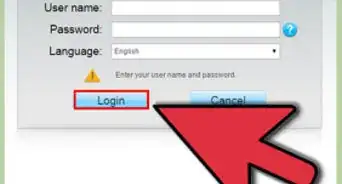
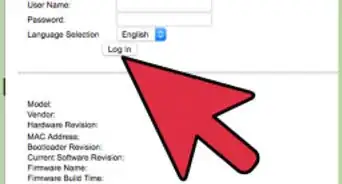
3Enter your username and password, then click Login. The default for the username is usually "admin" and the default password is "1234." You can also find the default username and password on the bottom of the modem.
-
4Click the Network tab. It's near the top of the page next to Status and Management.
-
5Click Advanced (for 2.4G networks) and/or 5G Advanced (for 5G networks). You'll see this in the menu on the left side of the page. To edit both the 2.4G and 5G networks, you'll need to click on each tab, enter your new password in the "Passphrase" field, and repeat.
-
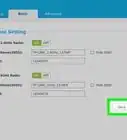
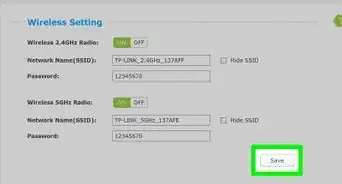
6Enter your new password in the "Passphrase" field. This could be an alphanumeric passphrase with at least 12 to 64 characters.
- If you want to change the network name, enter the new name in the "SSID" field.[1]
-
7Click Apply. After you edit a tab, click Apply to save your changes.



References
About This Article

1. Reset your modem (only if you changed your password and forgot it).
2. Go to https://192.168.1.1) and sign in.
3. Click the Network tab.
4. Click Advanced (for 2.4G networks) and/or 5G Advanced (for 5G networks).
5. Enter your new password in the "Passphrase" field.
6. Click Apply.