This article was co-authored by Darlene Antonelli, MA. Darlene Antonelli is a Technology Writer and Editor for wikiHow. Darlene has experience teaching college courses, writing technology-related articles, and working hands-on in the technology field. She earned an MA in Writing from Rowan University in 2012 and wrote her thesis on online communities and the personalities curated in such communities.
This article has been viewed 4,142 times.
This wikiHow will teach you how to change your password on Steam using the computer client. If you don't know the original password, you'll have to contact Steam Support or use the self-help site. If you contact Steam Support, you'll need proof of account ownership (be able to verify the purchase with a credit card), any possible login names, and emails associated with the account.
Steps
-
1Open Steam on your computer. You'll find this program in the Start menu of Windows computers or in the Applications folder in Finder on Mac.
-
2Click the Steam tab. It's at the top-left corner.
-
3Click Settings (Windows) or Preferences (Mac) on the menu.
-
4Click Change Password. It's on the right side of the screen in the "Account" section.
-
5Click Email an account verification code to your email to verify your identity. You'll get an email with a code that you'll need to enter in the Steam client to change your password.
- If the email isn't in your Inbox, check your Spam folder.
- If you don't know have access to the email associated with your account, click I no longer have access to this email address to be guided through alternate instructions to verify your identity.
-
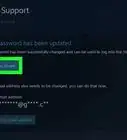
6Enter the code (it's usually 5 characters long) and create a new password. The new password must not be an old password and must meet the password strength requirements, which you'll see at the bottom of the screen under "Password strength."
-
7Click Change Password. Once you enter the new password, you'll receive an email confirmation.[1]






About This Article

1. Open the Steam computer client.
2. Go to Settings (Windows) or Preferences (Mac).
3. Click Change Password.
4. Enter your current password.
5. Click Next.
6. Enter the code (it's usually 5 characters long) and enter a new password.
7. Click Next and Finish.