This article was co-authored by wikiHow Staff. Our trained team of editors and researchers validate articles for accuracy and comprehensiveness. wikiHow's Content Management Team carefully monitors the work from our editorial staff to ensure that each article is backed by trusted research and meets our high quality standards.
The wikiHow Tech Team also followed the article's instructions and verified that they work.
This article has been viewed 1,318,125 times.
Learn more...
You cannot change the username associated with your Snapchat account.[1] You can, however, delete your old account and then create a new account with a different username. Alternatively, you can change your display name, which is the name your friends and other users will see when you send a Snap or a chat.
Steps
Part 1
Part 1 of 3:Deleting Your Old Snapchat Account
-
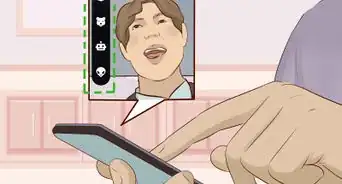
1Open the Snapchat app. This is the yellow app with a ghost icon.
-
2Swipe down from anywhere on your screen. Doing so will open your Snapchat account page.Advertisement
-
3Tap ⚙️. It's in the upper-right corner of the screen and takes you to the Settings menu.
-
4Scroll down and tap Support. It's in the "More Information" section.
-
5Tap My Account & Security. It's the last selection on the screen.
-
6Tap Account Information.
-
7Tap Delete My Account. It's in the center of the menu. This launches a new page explaining how to delete your account.
- If you want a new Snapchat user name but don't want to delete your existing account, you can just create a new account.
-
8Tap accounts portal. It's in the third paragraph.
-
9Enter your username and password. Do so to verify that you want to delete your account.
- If your username doesn't autofill, you'll need to enter that, as well.
-
10Tap Continue. Your Snapchat account is now deactivated and will be deleted after 30 days.
- If you change your mind, you can reactivate your account by signing into Snapchat within 30 days of deactivation.
- As of February 2017, there is not a way to export your friends list from Snapchat. While many of them will be searchable by phone number from your device's Contacts app, you should screen shot your Friends list before deleting your account.
Advertisement


Part 2
Part 2 of 3:Creating a New Snapchat Account
-
1Open Snapchat. It's a yellow app containing the outline of a white ghost.
- Enter your username and password if you're not automatically logged in.
-
2Swipe down anywhere on the screen. Doing so takes you to the user screen.
-
3Tap ⚙️. It's in the upper-right corner of the screen and takes you to the Settings menu.
-
4Scroll down and tap Log Out. It's at the bottom of the menu.
-
5Tap Sign Up. This will prompt you to create a new Snapchat account.
-
6Enter your name. Type your first and last name in the provided spaces.
-
7Tap Sign Up & Accept. Then enter your birthday, when prompted, and tap continue.
-
8Enter your new username. Choose the new username you'd like to have associated with your Snapchat account.
-
9Enter an email address. This email address must be different from the one associated with your old Snapchat account.
-
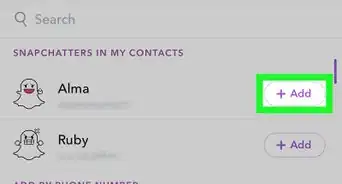
10Follow the rest of the onscreen prompts. From here, you can skip steps and add new or old friends from your contacts.
- Once you've got your account set up, you can go back and change your email and phone number from the Settings menu.
- You can delete your old Snapchat account, if you like, or leave it active if you think you may return to it.
Advertisement


Part 3
Part 3 of 3:Changing Your Snapchat Display Name
-
1Open Snapchat. It's a yellow icon containing a distinctive ghost logo.
- Enter your username and password if you're not automatically logged in.
-
2Swipe down from anywhere on your screen. Doing so will open your Snapchat account page.
-
3Tap ⚙️. It's in the upper-right corner of the screen and takes you to the Settings menu.
-
4Tap Name. It's at the top of the menu.
-
5Enter your new display name. You can enter just a first name or both a first and last name. Be sure to choose a name that's recognizable to your friends.
- If you choose not to use a display name, tap Remove Name. Users will still be able to see your username, but if your username doesn't identify you, it will be difficult for friends to find you.
-
6Tap Save.
-
7Tap Back. It's the arrow in the upper left corner of the screen. Now other folks on Snapchat will see the name you've just entered when you send them snaps or post a story.Advertisement


Community Q&A
-
QuestionHow do I change my Snapchat password?
 Community AnswerGo into your settings and click Password. You'll be able to enter your new password then.
 -
QuestionWho can see my Snapchat username and when?
 Community AnswerAnyone who types in your unique username, but you have privacy options in Snapchat as to who can interact with you.
 -
QuestionWhat should you do if you have streaks?Community AnswerThere is nothing you can do. Streaks will not be carried onto a new account.
-
QuestionWill my Memories go onto my new account?Community AnswerThere is no way to share the Memories between two accounts. You can download the pictures/videos, or you can even send them from your old account to your new account like you would with any snap. You don't have to delete your old account. As long as you keep your username and password in a safe place, you can always log in and view those Memories.
-
QuestionWill I lose my contact list if I change my username on Snapchat?Community AnswerYou can't change your username. You can only change your nickname. If you change your nickname, you won't lose your contact list.
-
QuestionWhy won't my Snapchat name appear even if I updated it days ago?Community AnswerTry restarting your phone. If it still doesn't work then try deleting the app, reinstall it and then log back in again. You won't lose your streaks or anything because all the data is saved to your account. Also, you could try signing in and out of your account.
-
QuestionHow can I change my username for the account?Community AnswerYou can't. The username you pick when you create your account is the username you keep for that account.
-
QuestionIf I delete my account, what will happen to my friends and my score?
 Community AnswerIf you delete your account, your friends list and your score will both be deleted.
 -
QuestionHow do I create an additional snapchat account?Community AnswerYou can only have one snapchat account per email address, but if you have an additional email address, just set up a second account the same way you created the first.
-
QuestionHow can I change my Snapchat username without deleting my account?
 Community AnswerAs the article points out, you can't change your username without deleting your account. Snapchat does not let us change our usernames for security reasons.






About This Article

1. Open Snapchat.
2. Swipe down.
3. Tap the Settings icon.
4. Tap Log Out.
5. Tap Sign Up.
6. Enter your name and accept.
7. Enter your new username.
8. Enter a different email address and follow prompts.