This article was co-authored by wikiHow Staff. Our trained team of editors and researchers validate articles for accuracy and comprehensiveness. wikiHow's Content Management Team carefully monitors the work from our editorial staff to ensure that each article is backed by trusted research and meets our high quality standards.
This article has been viewed 4,696 times.
Learn more...
This wikiHow teaches you how to change your account password on Equifax, and replace it with a new one. You can edit your account information in any mobile or desktop internet browser after you log in, or by clicking the "Forgot User Name or Password" on the login form.
Steps
Method 1
Method 1 of 2:Changing a Lost Password
-
1Open the Equifax Member Center in an internet browser. You can use any desktop or mobile internet browser.
- Type https://www.econsumer.equifax.com/otc/showmyequifax.ehtml into the browser's address bar, and press ↵ Enter or ⏎ Return on your keyboard.
-
2Click or tap the Forgot User Name or Password link. This is a blue link below the "User Name" and "Password" fields on the login page. It will redirect you to the Online Account Assistance system.
- Alternatively, you can just type https://www.econsumer.equifax.com/otc/loginhelp.ehtml into your browser's address bar, and directly open the Online Account Assistance page.
Advertisement -
3Enter your last name, social security number, and date of birth. The Online Account Assistance portal requires you to fill out your personal information in order to locate your account credentials.
- All of these fields are required.
- Make sure your personal information here exactly matches the information you provided during registration. Otherwise, the system will not be able to locate your account.
-
4Click or tap the Continue button. This is a red button in the lower-right corner of the Online Account Assistance form. It will process your personal information, and locate your account in the Equifax database.
-
5Enter the correct answer to your secret question. Once your personal account information is processed, you'll need to provide the correct answer to the secret question you selected during your initial account registration.
- Click or tap the Continue button to submit your answer.
-
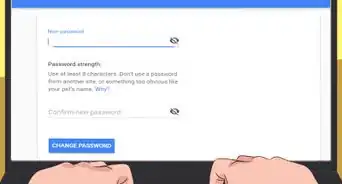
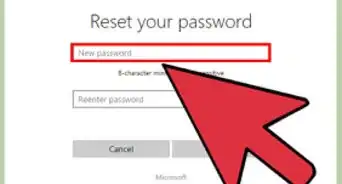
6Select a new account password. After answering your secret question, you can enter a new account password on the Online Account Assistance page.[1]
- This page will also display your User Name. You will need your User Name and your new password to sign in to your account later.
-
7Click or tap the Save or Update button. This will save your new account password, and send a confirmation message to the email address you provided during registration.Advertisement


Method 2
Method 2 of 2:Changing the Password from Your Profile
-
1Open the Equifax Member Center in an internet browser. You can use any desktop or mobile internet browser.
- Type https://www.econsumer.equifax.com/otc/showmyequifax.ehtml into the address bar, and press ↵ Enter or ⏎ Return on your keyboard.
-
2Sign in to your Equifax account. Enter your username and password, and click or tap the orange Sign In button. This will open your account overview.
-
3Click or tap My Account. You can find this button near the upper-left corner of the page.
-
4Select My Profile. This will open your profile information on a new page.
-
5Find the Password field on the "My Profile" page. Here, you can change your email address, username, and password, as well as your secret question and answer.[2]
-
6Enter a new password into the Password box. You can type your new password into the password box here, and use this password to sign in to your account later.
- If you're prompted, re-enter your new password into the confirmation box.
-
7Click or tap the Save or Update button. Once you save your new profile information, you'll be able to sign in to your account with your new password.
-
8Call a customer representative at 888-548-7878 (optional). If you need further assistance with your password, you can use this toll-free line to talk to a customer representative about your account information.Advertisement



References
About This Article

1. Open the Equifax Member Center.
2. Sign in to your account.
3. Click My Account on the top-left.
4. Click My Profile.
5. Find the Password box.
6. Enter your new password.
7. Click Save or Update.