X
wikiHow is a “wiki,” similar to Wikipedia, which means that many of our articles are co-written by multiple authors. To create this article, volunteer authors worked to edit and improve it over time.
This article has been viewed 23,612 times.
Learn more...
Are letters not typing the way you want them to? Or has this happened to you? You're typing text, whether it be in a document, on wikiHow, anywhere, and you start typing foreign characters like "é" when you hit the / key on your keyboard. Well here's your solution, follow these simple steps to find your way to serenity.
Steps
Method 1
Method 1 of 3:Removing a Keyboard
Method 1
-
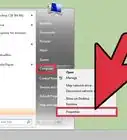
1Press ⊞ Win. This should open your start menu, displaying a list of programs, system tools, user profile modifier button, and a search box.
-
2Type "language" into the search box. If you start typing the very second you open the start menu, it should automatically type into the search box. Wait for this to load and it should bring up a list of search results.
-
3Click "Change keyboards or other input methods". Now a window will open, offering you the choice to "Change keyboards...".
-
4Click Change keyboards. This should open another window, listing your computer's language and the keyboards currently applied to it.
-
5Select a keyboard to remove (e.g. "Canadian Multilingual Standard"). Select a keyboard by clicking on its name, it should be highlighted in blue.
-
6Click Remove. "Remove" can be found on the rightmost side of the window, the second button from the top of the array of buttons. You have now completed the task, congratulations and happy typing!


Method 2
Method 2 of 3:Adding a Keyboard
Method 2
-
1Press ⊞ Win. This should open your start menu, displaying a list of programs, system tools, user profile modifier button, and a search box.
-
2Type "language" into the search box. If you start typing the very second you open the start menu, it should automatically type into the search box. Wait for this to load and it should bring up a list of search results.
-
3Click "Change keyboards or other input methods". Now a window will open, offering you the choice to "Change keyboards...".
-
4Click Change keyboards. This should open another window, listing your computer's language and the keyboards currently applied to it.
-
5Click Add. You can find the button "Add" on the rightmost side of the window at the top of the array of buttons. Now another window should open, giving you selections of languages.
-
6Select a language (e.g. "English (United Kingdom)" and click the + icon beside it. Now the language you selected should have expanded into multiple keyboard layouts.
-
7If applicable, click the + icon beside the word "Keyboard". Now you should find a selection of keyboard layouts.
-
8Check the checkbox next to the keyboard preferred and click Ok. You have now completed the task, congratulations and happy typing!


Method 3
Method 3 of 3:Changing Keyboards
Method 3
-
1Make sure to have more than one keyboard. Follow the above steps, "Adding a Keyboard", to add a keyboard.
-
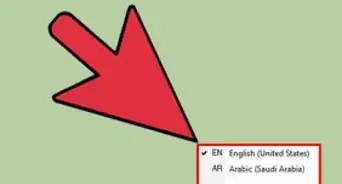
2Click the little keyboard icon aside your application tray. Both the application tray and the keyboard icon can be found at the bottom right of your computer screen.
-
3Select your preferred keyboard (e.g. "Canadian French"). Select your preferred keyboard by clicking on it, later if you revisit the menu, you will see a checkmark aside your currently selected keyboard.


Warnings
- This will modify the way your computer reads your keystrokes, unless you have the applicable keyboard, it is not recommended to change to an unfamiliar keyboard.Thanks!

-Step-55-Version-2.webp)



-Step-55-Version-2.webp)









































