X
This article was co-authored by wikiHow Staff. Our trained team of editors and researchers validate articles for accuracy and comprehensiveness. wikiHow's Content Management Team carefully monitors the work from our editorial staff to ensure that each article is backed by trusted research and meets our high quality standards.
The wikiHow Tech Team also followed the article's instructions and verified that they work.
This article has been viewed 186,111 times.
Learn more...
This wikiHow teaches you how to cancel your Spotify subscription on iPhone using either a mobile browser or iTunes, depending on how you subscribed to Spotify.
Steps
Method 1
Method 1 of 3:Cancelling Spotify Premium
Method 1
-
1Go to https://www.spotify.com. Do so in Safari, Chrome, or another mobile Web browser on your iPhone.
- Use this method if you signed up for Spotify on the Web or with the mobile app.
- You can't cancel or close your account using the mobile app.
-
2Tap ☰. It's in the upper-right corner.
-
3Tap Log In.
-
4Enter your username/email address and password, then tap LOG IN.
- Tap LOG IN WITH FACEBOOK if you use Facebook to sign in.
-
5
-
6Tap Subscription.
-
7Tap CHANGE OR CANCEL.
-
8Tap CANCEL PREMIUM.
-
9Tap YES, CANCEL. Your subscription will be canceled, effective at the end of the current billing cycle.


Method 2
Method 2 of 3:Spotify Subscriptions through iTunes
Method 2
-
1
-
2Scroll down and tap iTunes and App Store. It's next to a blue icon with a white A inside a white circle.
-
3Tap your Apple ID. It's at the top of the screen.
-
4Tap View Apple ID.
- If prompted, enter your Apple ID Password or tap the Home button for Touch ID.
-
5Scroll down and tap Subscriptions.
-
6Tap Spotify.
-
7Tap Cancel Subscription. It's toward the bottom of the screen.
-
8Tap Confirm. Your subscription will be canceled, effective at the end of the current billing cycle.


Method 3
Method 3 of 3:Closing Your Account
Method 3
-
1Go to https://support.spotify.com/us/close-account. Do so in Safari, Chrome, or another mobile Web browser on your iPhone.
- You must cancel any premium subscriptions before you close your account.
-
2Log in to Spotify.
-
3Tap LOG IN.
-
4Scroll down and tap the blue CLOSE ACCOUNT button.
-
5Verify that you're closing the correct account.
-
6Scroll down and tap CONTINUE.
-
7Check I understand, and still want to close my account.
-
8Tap CONTINUE. A verification email will be sent to the email address affiliated with your Spotify membership
-
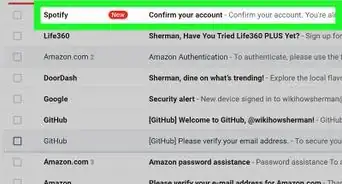
9Check your email and open the email from Spotify.
-
10Tap CLOSE MY ACCOUNT. You can reactivate your account within 7 days without losing your playlists or other information.


Community Q&A
-
QuestionHow do I cancel my iPhone Spotify if I don't have the iPhone anymore?
 Community AnswerIt is possible to do this via the Spotify website. Access the website, log in, and then open settings. There should be a "Cancel subscription" button. Follow the onscreen instructions.
 -
QuestionSpotify isn't showing up in my subscription list. How do I find it and cancel it?
 Community AnswerSearch it in the store, and cancel it from there. If the app is on your home screen, hold the apps down until they shake, then type the subtraction sign above the app to erase the app and its data. There will be a notification that reads something like "Are you sure?" Click OK.
 -
QuestionWhat do I do if Spotify didn't notify me that the free subscription was over and they're charging me?Community AnswerContact Spotify ASAP and explain your situation with them. They should give you a refund for what they have already charged you.
-
QuestionIn my Spotify account it says subscription premium billing starts to come out every month, but in my options, the setting to cancel the subscription is not there. What should I do?
 Community AnswerThe mobile app doesn't give you the option to cancel, but if you login to your account on a computer or laptop browser, then you can cancel from there.


About This Article

wikiHow Staff
wikiHow Staff Writer
This article was co-authored by wikiHow Staff. Our trained team of editors and researchers validate articles for accuracy and comprehensiveness. wikiHow's Content Management Team carefully monitors the work from our editorial staff to ensure that each article is backed by trusted research and meets our high quality standards. This article has been viewed 186,111 times.
Co-authors: 4
Updated: April 8, 2019
Views: 186,111
Categories: Spotify