This article was written by Travis Boylls. Travis Boylls is a Technology Writer and Editor for wikiHow. Travis has experience writing technology-related articles, providing software customer service, and in graphic design. He specializes in Windows, macOS, Android, iOS, and Linux platforms. He studied graphic design at Pikes Peak Community College.
The wikiHow Tech Team also followed the article's instructions and verified that they work.
This article has been viewed 3,082 times.
This wikiHow teaches you how to purchase iBooks on a Mac computer. You can buy iBooks in the Store section of the iBooks app. The iBook app comes pre-installed on your Mac.
Steps
-
1
-
2Click Applications. It's in the left-side column of the Finder window. This will display all the apps installed on your Mac.
-
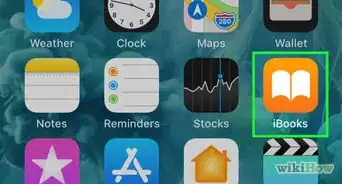
3Double-click the iBooks app. It's the app that resembles a white open book on an orange background.
-
4Click iBook Store. It's the button in the upper-left corner of the iBook app window.
-
5Browse or search for a book. Type the name of a book, publication, or author in the search bar in the upper-right corner of the window. Or, you can browse the available books by clicking the Featured, Top Charts, NY Times, Categories, or Top Authors tabs at the top of the window.
-
6Click the book you want to purchase. Click the book you want to purchase to see the price and additional information.
-
7Click the price button. The price button is under the cover image of the book on the left side of the page and usually says, "$X.XX Buy Book," with the price in place of the Xs.
-
8Type your Apple ID password. Before you purchase a book from iBooks, you are required sign in with your Apple ID. The default credit or debit card on your Apple account will be charged automatically.
- If the wrong Apple ID is signed in, click "Store" in the menu bar at the top, and click "Sign Out." Then sign in with your Apple ID.
- To change your payment method, click "Store" in the menu bar at the top. Then click "View My Apple ID". Click "Edit" across from "Payment Type" and enter your new payment information.
-
9Click Buy. It's in the lower-right corner of the Apple ID pop-up window.
-
10Click Buy to confirm. This will confirm your purchase and your payment method will be charged. The iBook will be downloaded to your Mac or iCloud account.






About This Article

1. Open iBooks.
2. Click iBooks Store.
3. Browse and select a book.
4. Click the price tag button.
5. Type your Apple ID password.
6. Click Buy.
7. Click Buy to confirm.