X
This article was written by Jack Lloyd. Jack Lloyd is a Technology Writer and Editor for wikiHow. He has over two years of experience writing and editing technology-related articles. He is technology enthusiast and an English teacher.
The wikiHow Tech Team also followed the article's instructions and verified that they work.
This article has been viewed 30,785 times.
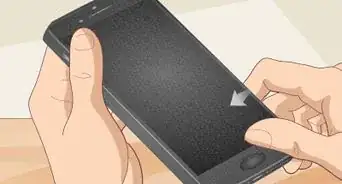
This wikiHow teaches you how to find and purchase a refurbished iPhone. A refurbished iPhone is an iPhone that has most likely been repaired or rebuilt by Apple technicians after the phone had previously been returned to the manufacturer due to a defect.
Steps
Part 1
Part 1 of 4:Selecting a Model
Part 1
-
1Understand which iPhones are still up to date. As of January 2020, you can still use the iPhone SE, 6s, 6s Plus, and up with the current operating system (iOS 13) and prospectively the next full operating system release.[1]
- You can still use the iPhone 5S with iOS 12, but it can not run iOS 13 or later.
- You can no longer buy an iPhone 7 or 7 Plus or below from the Apple website. If you want a refurbished iPhone 7 or 7 Plus or below, you'll need to use a third-party seller. The same applies to the iPhone X, Xs, and XS Max
-
2Determine the type of iPhone that you want to buy. Given the models that will support both the current operating system and at least one generation of the future operating system, select an iPhone model that meets your needs.
-
3Consider your preferred attributes. While the limited availability of some refurbished models means that you'll need to be somewhat flexible, knowing what to look in your iPhone for will help narrow your search. This includes some or all of the following attributes:
- Screen size
- Storage space (in gigabytes)
- Camera capacity
- As a reference, the iPhone SE has the smallest screen and the lowest-end performance of all of the currently supported iPhones, while the iPhone 11 and the iPhone 11 Pro are the highest-performance iPhones currently available.
-
4Find your preferred model's sub-model number. Each iPhone has a sub-model number that determines whether it uses CDMA or GSM for its network. You'll need to check the sub-model number against your current carrier to ensure that the iPhone will work on your network.[2]
- iPhone SE - A1723 | A1662 | A1724
- iPhone 6 - A1549 | A1586 | A1589
- iPhone 6 Plus - A1522 | A1524 | A1593
- iPhone 6S - A1633 | A1688 | A1700
- iPhone 6S Plus - A1634 | A1687 | A1699
- iPhone 7 - A1660 | A1778 | A1779
- iPhone 7 Plus - A1661 | A1784 | A1785
- iPhone 8 - A1863 | A1905 | A1906
- iPhone 8 Plus - A1864 | A1897 | A1898
- iPhone X - A1865 | A1901 | A1902
-
5Write down your iPhone model's sub-model numbers. Now that you know the sub-model numbers that accompany the various types of your selected iPhone, you'll need to figure out which of those sub-models will work with your current carrier.


Part 2
Part 2 of 4:Ensuring Compatibility with Your Network
Part 2
-
1Open the Will My Phone Work page. Go to https://willmyphonework.net/ in your browser. This website compares iPhone sub-model numbers with carriers all over the world, thus determining which phones will work on your network and which ones won't be compatible.
-
2Select a brand. Click the "Brand" drop-down box, then click Apple in the resulting drop-down menu.
-
3Select an iPhone model. Click the "Model" drop-down box, then click the iPhone model that you want to use.
- If attempting to select iPhone X, click a different model in the drop-down menu, then re-open the drop-down menu and select iPhone X.
-
4Select a sub-model number. Click the "Sub Model" drop-down box, then click one of the numbers in the drop-down menu.
- If you have a specific network type (e.g., CDMA or GSM) in mind, click the CDMA or the GSM option in the drop-down menu instead.
-
5Select a country. Click the "Country" drop-down box, then select the country in which you'll be using the iPhone. You may have to scroll down to find your country.
-
6Select a carrier. Click the "Carrier" drop-down box, then click the carrier with which you want to use your iPhone.
-
7Click Search. It's at the bottom of the page. Doing so will check your selected iPhone model against your selected carrier.
-
8Review the results. If you see three blue checkmarks appear at the bottom of the page, your selected sub-model of iPhone will work with your carrier.
- If the model that you've selected won't work with your network, try another one of the iPhone sub-model numbers that you wrote down.
- Once you find a sub-model number that works, you can proceed to buying the iPhone.


Part 3
Part 3 of 4:Buying from Apple
Part 3
-
1Open Apple's website. Go to https://www.apple.com/ in your browser. Buying refurbished iPhones from Apple will most likely be a bit more expensive than buying a refurbished iPhone from a different dealer, but it's also generally safer.
-
2
-
3Type in refurbished. Do so in the search bar that appears at the top of the page. You should see a drop-down menu with matching results appear below the search bar.
-
4Click Refurbished Products. It's the top result in the drop-down menu. Doing so will take you to the Refurbished Products page.
-
5Find the "Refurbished iPhone" heading. This is at the top of the page.
-
6Click Shop now. It's a button below the "Refurbished iPhone" heading. This will open a list of currently available refurbished iPhones.
-
7Find your preferred iPhone model. Scroll through the available iPhone models until you find the one that you want to buy.
- Keep in mind that, since refurbished iPhones are in significantly shorter supply than are regular iPhones, you might have to compromise on some iPhone features (e.g., color, memory, etc.).
-
8Check the sub-model number. Below the iPhone's name (e.g., " Refurbished iPhone 7 256GB - Silver"), look for the phrase "Model [sub-model number]" in the list of details about the phone. If the number there matches the number that you tested earlier, you can proceed.
- If not, look for another version of the phone.
- You can also test the sub-model number that's listed there to see if it will also work for your network.
-
9Click Select. It's to the right of the iPhone. Doing so opens the iPhone's page.
-
10Click Add to Bag. This blue button is on the left side of the page.
-
11Click Check Out. It's a blue button in the lower-right side of the page.
-
12Sign in with your Apple ID. Enter your Apple ID email address and password on the left side of the page.
- You can also just click Continue as Guest if you don't want to log in here.
-
13Enter any shipping information as needed. Depending on what information you have on your Apple ID page, you may need to fill out the shipping address, payment, and account sections of this form.
- You may also need to confirm your credit card information if prompted.
-
14Confirm your purchase. Once you've entered your payment information, click the Place order or Purchase button to confirm your decision and purchase your iPhone.


Part 4
Part 4 of 4:Buying from a Third-Party Seller
Part 4
-
1Find a seller's platform. You can buy refurbished iPhones in several different types of places, both online and in stores:
- Carrier - Many carriers—such as Verizon, AT&T, T-Mobile, and Sprint—stock refurbished iPhones in their stores.
- Online retailer - You can usually find refurbished iPhones in places like Amazon's and Best Buy's online stores.
- Classifieds - Places like Craigslist, eBay, and even Facebook's classifieds section usually have several different options for refurbished electronics, and iPhones are often popular.
-
2Find an iPhone that matches your criteria. Look for your preferred model of iPhone that has your specific preferences.
- As with anything refurbished, you may have to compromise on things like color and storage capacity.
-
3Make sure that the iPhone is unlocked. Unlike Apple's website, many third-party sites sell carrier-locked versions of iPhones (e.g., an AT&T model, a Verizon model, etc.). Make sure that your iPhone is listed as "Unlocked" to ensure that you'll be able to use it with any network that you like.
-
4Check the iPhone's sub-model number. This option's location will vary depending on your selected site, but you can usually find the sub-model number in the iPhone's description.
- If you're buying from a classifieds site, you may have to contact the seller and have them check the sub-model number.
-
5Add the iPhone to your cart. If online, select the iPhone to add it to your cart, or click the Add to cart button (or similar) if necessary.
- Skip this step if you're shopping in an in-store location (e.g., a Best Buy).
-
6Enter any payment and/or shipping information as needed. If you're online, you'll usually have to enter a shipping address and your payment information before checking out. This may not apply if you already have an account with the selected service.
- Again, skip this step if you're shopping at an in-store location.


Community Q&A
-
QuestionWhere would I buy an iPhone 5c?
 Community AnswerTry Ebay or Amazon. Also, you can try looking at repair shops.
 -
QuestionHow much does an iPhone 4 cost?
 Community AnswerThey are available for about $60 to $100 online.
 -
QuestionCould I type on an iPhone?Community AnswerYes, you can type on an iPhone. You can get a bluetooth keyboard online, for very little money.
Warnings
- If you purchase an iPhone that isn't compatible with your network, you won't be able to use it without switching to a different network that does support it.Thanks!