This article was written by Nicole Levine, MFA. Nicole Levine is a Technology Writer and Editor for wikiHow. She has more than 20 years of experience creating technical documentation and leading support teams at major web hosting and software companies. Nicole also holds an MFA in Creative Writing from Portland State University and teaches composition, fiction-writing, and zine-making at various institutions.
The wikiHow Tech Team also followed the article's instructions and verified that they work.
This article has been viewed 11,871 times.
This wikiHow teaches you how to prevent a Facebook Messenger contact from sending you messages when you’re on a computer. You’ll also learn how to completely block someone so they can't see you in Messenger or on Facebook.
Steps
Method 1
Method 1 of 2:Blocking in Messenger
-
1Go to https://www.facebook.com in a web browser. You can use any web browser to access Facebook, including Safari and Chrome. If you’re not signed in, enter your account information and click Sign in now.
-
2Click Messenger. It’s in the left column near the top of the list.Advertisement
-
3Click the name of the person you want to block. You should see it in the Contacts column on the left side of the screen. This opens a conversation with this user.
- If you don’t see the person, type their name into the “Search Messenger” box at the top of the screen, then select them from the search results.
-
4Click the gear near the top-right corner of conversation. It’s to the right of the person’s name (in the right column). A menu will appear.
-
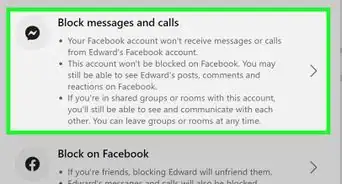
5Click Block Messages. A confirmation window will appear.
-
6Click Block Messages to confirm. Now that you’ve blocked this person, they can't call or send you messages. This won’t remove you from their friends list and you’ll still be able to communicate with them on Facebook.
- To completely block the person on Facebook, see this method.
- To unblock the person, click the gear next to their name, then select Unblock Messages.
Advertisement


Method 2
Method 2 of 2:Blocking on Facebook
-
1Go to https://www.facebook.com in a web browser. You can use any web browser to access Facebook, including Safari and Chrome. If you’re not signed in, enter your account information and click Sign in now.
- This method will help you completely block a Facebook user. In addition to not being able to send you messages, this user will be removed from your friends list. They’ll also be unable to find you on Facebook or in Messenger.
-
2Click the gear icon. It’s at the bottom-right corner of Facebook. A pop-up menu will appear.
-
3Click Block Settings.
-
4Type the name of the person you want to block into the “Block users” box. Typing just the first name is fine.
-
5Click Block. It’s the blue button to the right of the “Block users” box. A list of Facebook users who match what you’ve typed will appear.
-
6Click Block next to the person you want to block. A confirmation window will appear, reminding you that you’ll no longer be able to communicate with or see one another’s posts.
-
7Click Block [name] to confirm. The user is now added to your block list. They can no longer communicate with you on Facebook Messenger.
- All of your blocked users appear in the “Block users” section.
- You can remove people from your block list by clicking Unblock to the right of their name.
Advertisement



About This Article