This article was co-authored by Chiara Corsaro. Chiara Corsaro is the General Manager and Apple Certified Mac & iOS Technician for macVolks, Inc., an Apple Authorized Service Provider located in the San Francisco Bay Area. macVolks, Inc. was founded in 1990, is accredited by the Better Business Bureau (BBB) with an A+ rating, and is part of the Apple Consultants Network (ACN).
The wikiHow Tech Team also followed the article's instructions and verified that they work.
This article has been viewed 631,379 times.
This wikiHow teaches you how to back up the data and files on your Mac to an external hard drive and/or Apple's cloud-based storage service, iCloud.
Steps
Method 1
Method 1 of 2:Using Time Machine
-
1Connect your Mac to a formatted external hard drive. Connect the drive to your computer using the cable provided (usually USB, Lightning or eSATA).
-
2
-
3Click on System Preferences. It's in the second section of the drop-down menu.
-
4Click on Time Machine. It's near the bottom-center of the window.
- For older versions of macOS and Time Machine, make sure the Time Machine switch is set to the "On" position.
-
5Click on Select Backup Disk…. It's in the right pane of the dialog box.
-
6Click on a disk. Select the external hard drive you connected to your Mac.
-
7Click on Use Disk. It's in the lower-right corner of the dialog box.
- Check Back Up Automatically in the left pane of the dialog box if you want your Mac to back up at regular intervals.
- Check Show Time Machine in menu bar to create a shortcut in the menu bar to Time Machine preferences and backup status.
-
8Click on Options…. It's in the lower-right corner of the window.
- Check Back up while on battery power to allow Time Machine backups when your Mac is not plugged in.
- Check Notify after old backups are deleted if you'd like Time Machine to let you know when it's deleted older backups to make space for newer ones.


Method 2
Method 2 of 2:Backing up to iCloud
-
1
-
2Click on System Preferences. It's in the second section of the drop-down menu.
-
3Click on iCloud. It's on the left side of the window.
- If you're not automatically logged in, enter your Apple ID and password.[1]
- To see how much storage you have in your plan, or to upgrade, click on Manage... in the lower-right corner of the dialog box, then click on Change Storage Plan... in the upper-right corner of the dialog box.
-
4Check the box next to iCloud Drive. It's at the top of the right pane. Now you can store files and documents in iCloud.
- Do so by choosing iCloud Drive in any "Save" dialog box or dragging files to iCloud Drive in the left pane of a Finder window.
- Select which apps have permission to access iCloud Drive by clicking on the Options button next to iCloud Drive in the dialog box.
-
5Select the types of data to store on iCloud. Do so by checking the boxes below "iCloud Drive".
- Check "Photos" if you want to back up and access your Photos on iCloud.
- Check "Mail" to sync and store email messages on iCloud.
- Check "Contacts" to keep a copy of your contacts on iCloud.
- Check "Calendars" to keep a copy of your calendars on iCloud.
- Check "Reminders" to keep a copy of your reminders on iCloud.
- Check "Safari" to keep a backup of your Safari data, such as browsing history and favorites, on iCloud.
- Check "Notes" to keep a copy of your notes on iCloud.
- Check "Keychain" to share an encrypted copy of passwords and payment data across the devices signed in with your Apple ID.
- You may need to scroll down to see all the selections.


Community Q&A
-
QuestionWhat if I don't want to use iCloud or Time Machine?
 Chiara CorsaroChiara Corsaro is the General Manager and Apple Certified Mac & iOS Technician for macVolks, Inc., an Apple Authorized Service Provider located in the San Francisco Bay Area. macVolks, Inc. was founded in 1990, is accredited by the Better Business Bureau (BBB) with an A+ rating, and is part of the Apple Consultants Network (ACN).
Phone & Computer Repair TechnicianYou can always go old school and copy files to a USB drive, CD, or DVD. It's definitely unnecessary, though; Time Machine and iCloud are pretty efficient when it comes to backing up Mac files. -
QuestionHow long does it take for Time Machine to back everything up?Chiara CorsaroChiara Corsaro is the General Manager and Apple Certified Mac & iOS Technician for macVolks, Inc., an Apple Authorized Service Provider located in the San Francisco Bay Area. macVolks, Inc. was founded in 1990, is accredited by the Better Business Bureau (BBB) with an A+ rating, and is part of the Apple Consultants Network (ACN).
Phone & Computer Repair TechnicianIt usually takes about 1 hour. It depends on how you have things set up and what kind of drive you're using. -
QuestionCan I leave the Time Machine drive plugged in?Chiara CorsaroChiara Corsaro is the General Manager and Apple Certified Mac & iOS Technician for macVolks, Inc., an Apple Authorized Service Provider located in the San Francisco Bay Area. macVolks, Inc. was founded in 1990, is accredited by the Better Business Bureau (BBB) with an A+ rating, and is part of the Apple Consultants Network (ACN).
Phone & Computer Repair TechnicianIt's not intrinsically problematic, but I wouldn't recommend it. Those drives run on the computer's internal power supply, and they aren't designed to be plugged into a computer for an extended period of time. -
QuestionWill Time Machine back up my Mac to iCloud?
 Community AnswerNo. Time Machine is for making a local backup of your computer to an external hard drive, but will not send this backup anywhere on the internet.
 -
QuestionCan I keep the data locally as well as on the iCloud?Community AnswerYes, you can keep all of your data on your device. It will just be on iCloud as well.
-
QuestionIs my Facebook message history included in my backup?
 Community AnswerNo, it is not. However, your Facebook message history should be accessible any time you log into Facebook from any device.
 -
QuestionWhat should I do before I remove a disk?
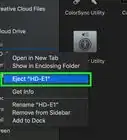
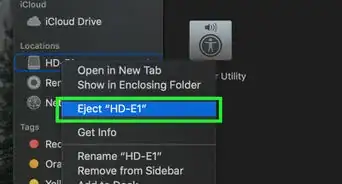
 Community AnswerYou should right-click on the icon and click eject. Once you see it disappear, you can remove the disk.
 -
QuestionHow do I stop iCloud backups?
 Ted KatsorchisCommunity AnswerOpen System Preferences. Then open iCloud. Remove check mark from the apps you want to stop backing up to iCloud. If you are backing up anything other than Apple apps, click on "Options" next to iCloud (you still need to follow the above steps). The following window will show you which non-Apple apps are storing docs for files, uncheck them and they will no longer store on iCloud.
 -
QuestionDoes backing up my Mac book Pro to iCloud also include files like .doc, ,xls, .pdf etc?
 Community AnswerYes.
 -
QuestionCan I restore the full contents of my computer from iCloud?Community AnswerIf you've backed up all of your computer's contents to iCloud, then yes.
Warnings
- No single backup option is completely foolproof, so again, be sure your backup plan includes multiple locations for your data.Thanks!











References
About This Article

1. Connect your Mac to an external hard drive.
2. Open the Apple menu and select System Preferences.
3. Click Time Machine.
4. Click Select Backup Disk.
5. Select the external hard drive.
6. Click Use Disk.
7. Click Options to set your preferences.