This article was co-authored by wikiHow staff writer, Hannah Madden. Hannah Madden is a writer, editor, and artist currently living in Portland, Oregon. In 2018, she graduated from Portland State University with a B.S. in Environmental Studies. Hannah enjoys writing articles about conservation, sustainability, and eco-friendly products. When she isn’t writing, you can find Hannah working on hand embroidery projects and listening to music.
There are 7 references cited in this article, which can be found at the bottom of the page.
This article has been viewed 4,381 times.
Learn more...
If you run a website or a business, you probably know the importance of having a backup for your database. Losing data can mean the difference between making a profit and being in the hole, so it’s a critical step in case anything goes wrong. If you’re using a Structured Query Language (SQL) database, which is the most common type of database, you can easily back it up and use it to restore your data if you need to.
Steps
Method 1
Method 1 of 3:Full Backup
-
1Pick a place to store your backup. Backups can take up a lot of space, which is why many experts suggest storing them on an external hard drive or a cloud. Good options for storage include Glacier, Google Archival, Microsoft Azure, and Amazon S3.[1] You can also store your backup on your own computer, but it might take up more room than you have available.
- It’s also worth storing your backup in multiple spots. That way, if anything goes wrong with one storage solution, you have your backup in another spot.
-
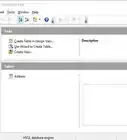
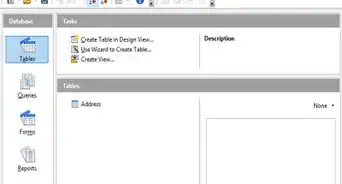
2Open the database you’d like to back up. Before you begin the back up process, make sure everyone else has closed the database you’re working on. On your computer, right click it to open it up.[2]
- SQL databases work across platforms, so it’s the same process on Windows, Mac, and Linux.
-
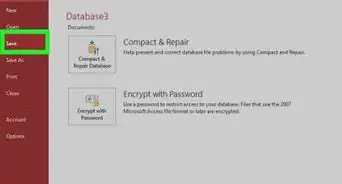
3Select File > Save As. This will open up a new window where you can select a few different options.[3]
-
4Head to “Advanced,” then click “Back Up Database” and “Save As.” The “Advanced” options are near the bottom of the screen. Highlight the option that says “Back Up Database,” then click on “Save As.”[4]
-
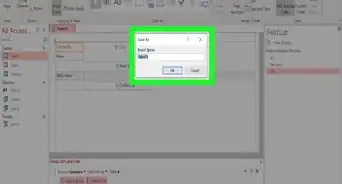
5Select the file type, then click “Save.” In the dialogue box, pay attention to the name given to your back up (usually, it will be labeled with today’s date). Select the file type you’d like to save your database as (typically, it will be saved under “Database”), then click “Save.”[5]
- If you want to rename the back up file, you can do that in the dialogue box before you save it.
- Experts recommend doing a full backup every week.


Method 2
Method 2 of 3:Incremental or Differential Backup
-
1Download incremental or differential backup software. An incremental backup only copies what’s been changed since the last backup. It can help save you time, especially if you plan on backing up your database every day. A differential backup also saves you time, because it only copies what’s been changed since the last full backup.[6]
- Look for incremental or differential backup software that you can use, like AOMEI Backupper for Windows.[7]
- On Mac, try a software like Super Duper!
-
2Add your file or folder to the backup software. In your files, navigate to where you stored your last full backup. Add the file or the folder to your backup software, then upload it.[8]
-
3Choose the backup destination. You can send the incremental backup to your computer’s hard drive, an external drive, or a cloud. You can also choose a network if your computer is connected to one.[9]
-
4Schedule your incremental and differential backups. Experts recommend either doing an incremental or a differential backup once a day.[10] In your software, head to the scheduling tool and choose how often you want your database to back up and what time of day it should do it. Usually, you’ll choose a time that’s close to the end of the day after all changes have been made.
- Incremental and differential backups won’t take as long as a full backup, but they can still take a while if you’ve made a lot of changes.


Method 3
Method 3 of 3:Restoring a Database
-
1Close the damaged database. If your database ever gets corrupted or the system fails, you can use a back up to restore your information. Close the damaged database and get everyone else to close their version, too.[11]
-
2Open up your File Explorer dialogue box. Here, you can navigate to the database to find the version you’d like to restore. If you don’t want to override the corrupt database, you can simply open up the back up and delete the old version of the database. However, if you want to replace the corrupt database, keep reading.[12]
-
3Click Database > Restore Database. Right click on the “Database” option to open a dropdown menu. Then, select “Restore Database.”[13]
-
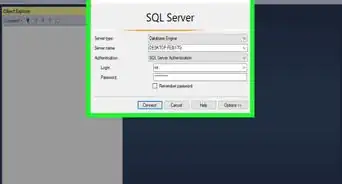
4Select “Device,” then click the button with 3 dots. This will open up a new popup window with options about your database.[14]
-
5Click Add > Ok > Options. After clicking “Add,” browse for your backup file. Once you find it, click “Ok.” Then, in the left navigation window, select “Options.”[15]
-
6Select “Overwrite the existing database (WITH REPLACE).” Also select “Close existing connections to destination database.” When you’ve checked both boxes, click “Ok” to restore your database.[16]












References
- ↑ https://docs.microsoft.com/en-us/sql/relational-databases/backup-restore/back-up-and-restore-of-sql-server-databases?view=sql-server-ver15
- ↑ https://support.microsoft.com/en-us/office/video-back-up-databases-176940ee-a5dc-4293-beda-9894768e7c8d
- ↑ https://support.microsoft.com/en-us/office/video-back-up-databases-176940ee-a5dc-4293-beda-9894768e7c8d
- ↑ https://support.microsoft.com/en-us/office/video-back-up-databases-176940ee-a5dc-4293-beda-9894768e7c8d
- ↑ https://support.microsoft.com/en-us/office/video-back-up-databases-176940ee-a5dc-4293-beda-9894768e7c8d
- ↑ https://www.computerweekly.com/news/252439275/Backup-101-Incremental-vs-differential-backup
- ↑ https://www.ubackup.com/windows-10/incremental-and-differential-backup-windows-10-1128.html
- ↑ https://www.ubackup.com/windows-10/incremental-and-differential-backup-windows-10-1128.html
- ↑ https://www.ubackup.com/windows-10/incremental-and-differential-backup-windows-10-1128.html
- ↑ https://dev.mysql.com/doc/mysql-enterprise-backup/4.1/en/mysqlbackup.incremental.html
- ↑ https://docs.microsoft.com/en-us/sql/relational-databases/backup-restore/restore-a-database-backup-using-ssms?view=sql-server-ver15
- ↑ https://support.microsoft.com/en-us/office/video-back-up-databases-176940ee-a5dc-4293-beda-9894768e7c8d
- ↑ https://www.ibm.com/docs/en/license-metric-tool?topic=database-restoring-sql-server
- ↑ https://docs.microsoft.com/en-us/sql/relational-databases/backup-restore/restore-a-database-backup-using-ssms?view=sql-server-ver15
- ↑ https://www.ibm.com/docs/en/license-metric-tool?topic=database-restoring-sql-server
- ↑ https://www.ibm.com/docs/en/license-metric-tool?topic=database-restoring-sql-server
About This Article