wikiHow is a “wiki,” similar to Wikipedia, which means that many of our articles are co-written by multiple authors. To create this article, volunteer authors worked to edit and improve it over time.
The wikiHow Tech Team also followed the article's instructions and verified that they work.
This article has been viewed 105,901 times.
Learn more...
No matter what you use your computer for, sooner or later you will want to archive some of your folders that contain information you want to keep but that you rarely access. Archiving your folders, especially if you compress, or zip them first, will separate the files you’re actively working on and free up disc space on your hard drive. Archived folders are stored in a special folder or location, and they are still easily accessed. In the Windows system, you can archive folders without compressing them. The Mac operating system allows you to compress (sometimes referred to as “zip”) files and folders, which is the same as compressing them; the Mac OS considers a compressed or zipped folder to be archived.
Steps
Method 1
Method 1 of 2:Archive Folders in Windows
-
1Compress your folders when you archive them. If you don’t compress them, they will take up the same amount of disc space. Windows gives you the option to compress your folder at the same time you archive it.
- Open the folder you want to archive
- Click “Organize” on the top menu bar then click Properties
- Click “advanced.”
- Click “folder is ready for archiving.”
- Click “compress contents to save disk space.” (This step isn’t required to archive the folder, but it is advisable.)
-
2
-
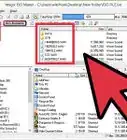
3Re-open archived folders. If you ever want to access your archived folders, simply double-click on the folder. Windows will open it for full view, but you will have to repeat the archival steps again once you have opened it.


Method 2
Method 2 of 2:Archive Folders on a Mac
Community Q&A
-
QuestionAfter archiving, the folder is not showing in my computer. What can I do?
 Community AnswerCheck in your trash folder. Perhaps you accidentally deleted it.
Warnings
- Archiving and compressing does not equal backup. Always back up your work on a removable disc, flash drive or store it in the cloud. If your computer crashes, your archived folders will not be protected.Thanks!